---
title: "How do WhatsApp reminders work?"
description: "Almendra can send your patients a WhatsApp reminder before every scheduled appointment. Turn it on in Settings → Mailing and Reminders."
sidebar:
order: 21
lastModified: 2026-11-10
translationKey: consultas/como-funcionan-los-recordatorios-por-whatsapp
---
Almendra can send your patients a WhatsApp reminder before every scheduled appointment. It's sent from Almendra's WhatsApp, so you don't need to connect your own number. It goes a long way toward fewer missed appointments.
**Turn the reminders on**
1. Go to **Settings → Mailing and Reminders**.
2. Find **Appointment reminder** with the WhatsApp icon and turn the switch on (**Enabled**).
3. Under **Schedule send**, choose how many hours before each appointment it goes out.
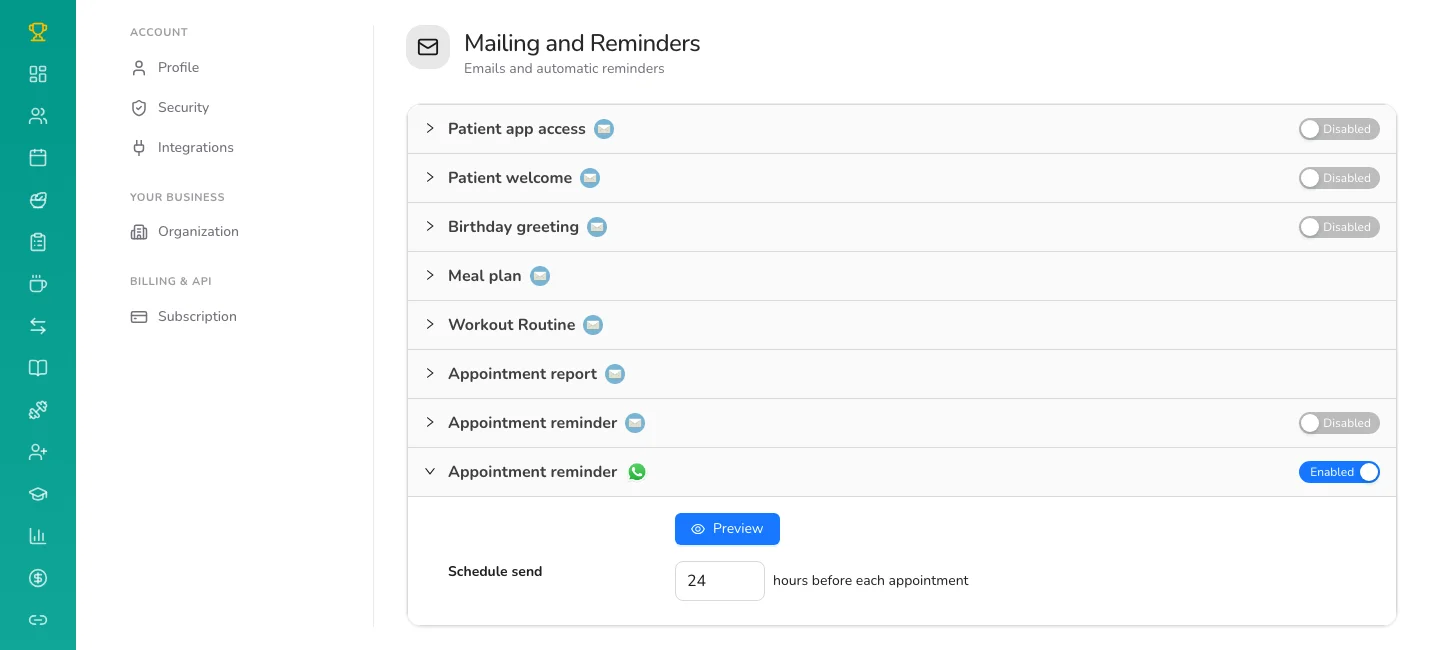 The send time is shared by the WhatsApp reminder and the email reminder: change one and the other changes too. You can have either one on, or both.
**What your patient receives**
A message with their name, your name and the appointment date. You can see it with the **Preview** button.
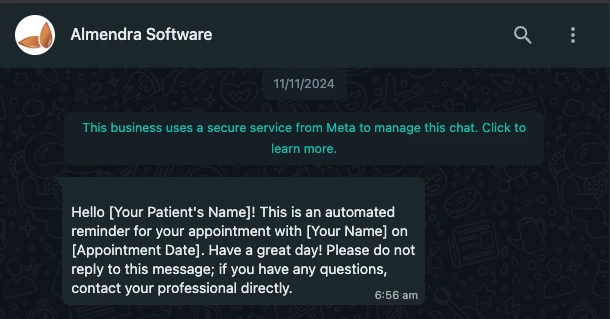 The message asks them not to reply there and to contact you directly with any questions, because replies to that number don't reach you.
**What it needs**
- The patient must have their **mobile number on their profile**, with the country code (for example, +1 or +44). Patients without a phone number don't get it. They also need their **email on their profile**.
- The appointment has to be **scheduled** in your Schedule, whether you booked it or the patient booked it online.
- If your plan doesn't include automatic emails and reminders, you'll see a **Pro** badge next to the switch.
If you want the same reminder by email, or want it to go out 24 hours before, read [How do I set up the 24-hour reminder before the appointment?](/help/en/appointments/how-do-i-set-up-the-24-hour-reminder).