---
title: "How do I add an equivalent food?"
description: "Swap a food for its equivalent in any meal plan editor, and add an equivalents group at the proportion you choose in a flexible meal plan in Almendra."
sidebar:
order: 11
lastModified: 2026-10-15
translationKey: planes-alimenticios/como-agrego-un-alimento-equivalente
---
If you're on this page, you probably want to answer one of these two questions:
1. How do I swap a food for an equivalent food?
2. How do I add a group of equivalent foods to a flexible plan?
Both require that you've already created your equivalents in the **Equivalents** section. If you haven't yet, read [How do I add an equivalent food group?](/help/en/meal-plans/how-do-i-add-an-equivalent-food-group).
**1. How do I swap a food for an equivalent food?**
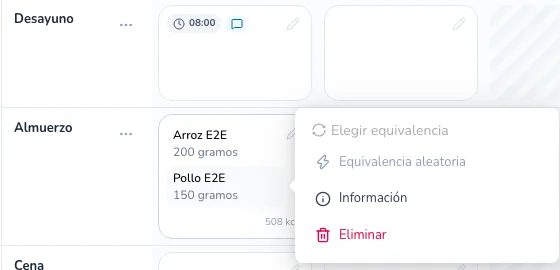
- **In the table editor:** click the food inside its cell and choose **Choose equivalence**. If you'd rather let Almendra pick, use **Random equivalence**. If the food has no equivalents, these options are disabled.
 - **In the day-by-day and flexible editors:** click the circular arrows icon to the right of the food.
The **Swap food for equivalence** window opens, with the quantity and macros of the current food and the list of its equivalents:
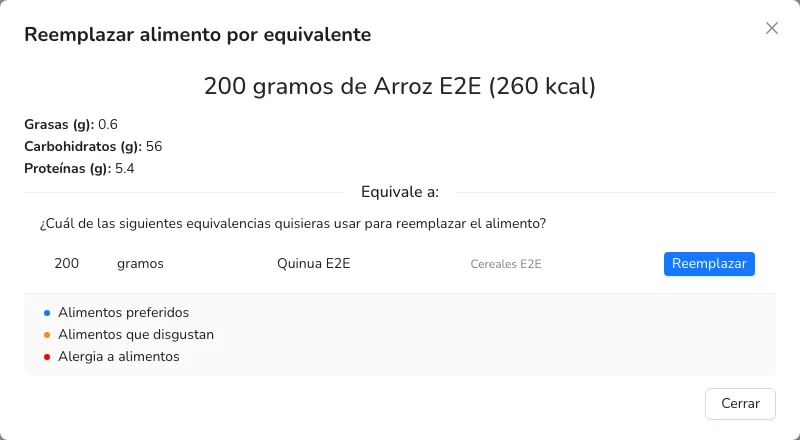 In this example, 200 grams of rice are equivalent to 200 grams of quinoa. You may have many more equivalent foods. Pick the food you want to use instead and click **Swap**.
**2. How do I add a group of equivalent foods to a flexible plan?**
In a **Flexible options** plan, each group in a meal has a search bar. Next to it there's a green **+** button (**Add equivalents group**). Click it and the **Add equivalents group** window opens:
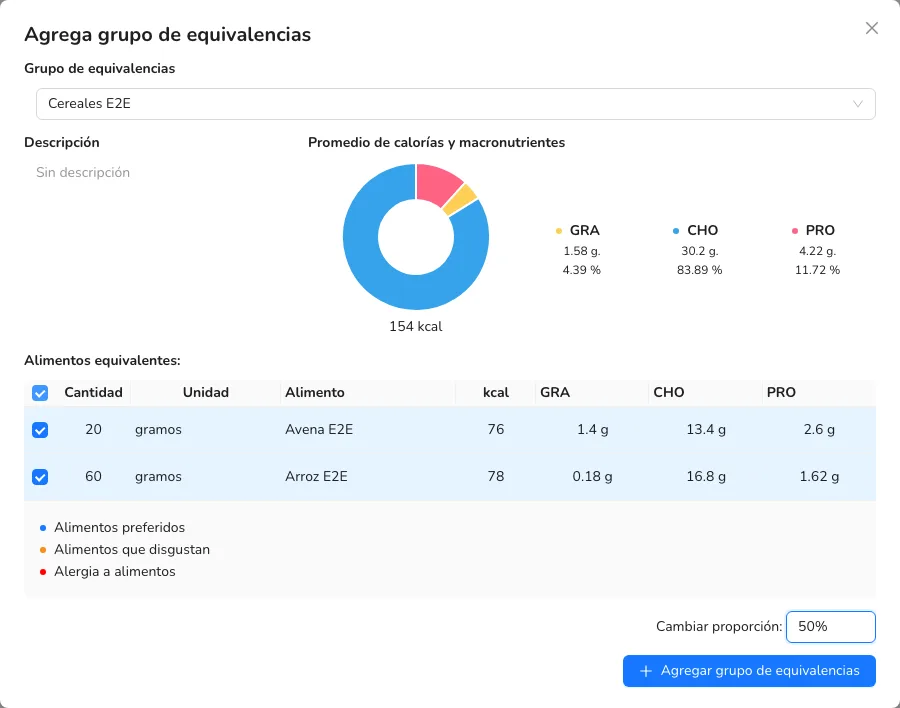 1. Under **Equivalence group**, choose the group. You'll see its description and its average calories and macronutrients.
2. Under **Equivalent foods**, check the foods you want to add as options for the patient.
3. In **Change proportion**, choose what proportion of the quantities to add. For example, if the group says "2 units of anchovy", 100% adds 2 units and 50% adds 1 unit.
4. Click **Add equivalents group**. The checked foods are added as options of the group in that meal.