---
title: "How do I see and sign out my active sessions?"
description: "In Settings → Security → Active sessions you see where you're signed in (device, location, IP) and can sign out any session you don't recognize."
sidebar:
order: 22
lastModified: 2026-10-31
translationKey: otros/como-veo-y-cierro-mis-sesiones-activas
---
In **Settings → Security → Active sessions** you see every device and browser where your account is signed in, and you can sign out the ones you no longer use or don't recognize.
## What each session shows
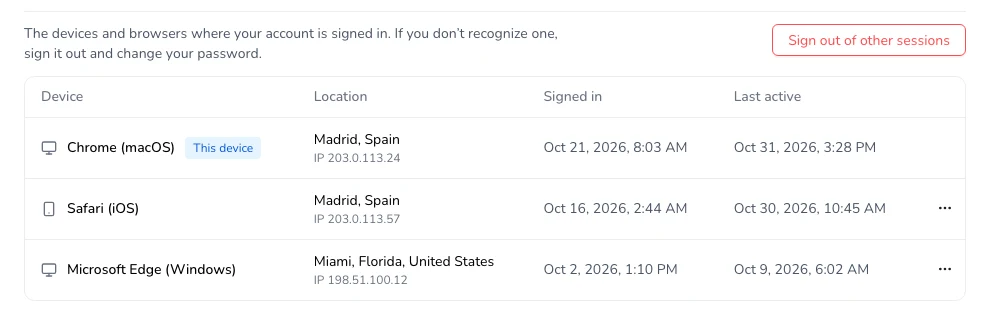
- **Device**: the browser and system, for example Chrome (macOS) or Safari (iOS).
- **Location**: the city, region and country the session was started from, with its IP below.
- **Signed in**: when it started.
- **Last active**: the last time it was used (it can be up to a day behind).
The device you're using right now says **This device**.
 Sessions started before October 31, 2026 show **Unknown location** until someone signs in again on that device.
## Sign out a session
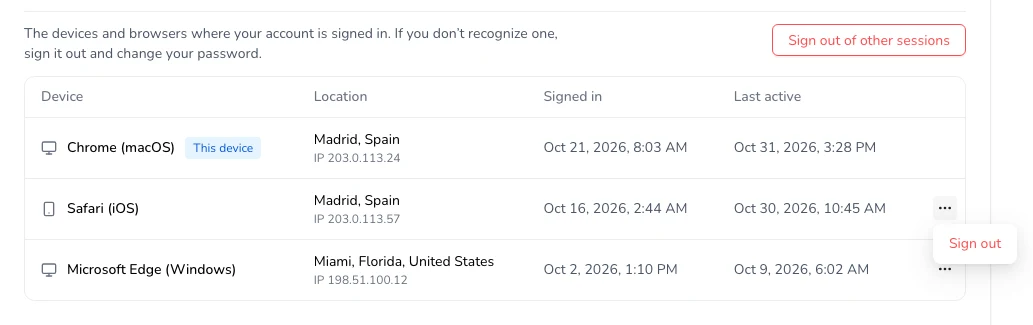
1. On the session's row, click **…**.
2. Click **Sign out** and confirm.
Sessions started before October 31, 2026 show **Unknown location** until someone signs in again on that device.
## Sign out a session
1. On the session's row, click **…**.
2. Click **Sign out** and confirm.
 That device will need to sign in again. It can take up to 5 minutes to take effect.
To sign out of every device except the one you're using, click **Sign out of other sessions**. To sign out on this device, use **Log out** in your account menu, as usual.
## Your team's sessions
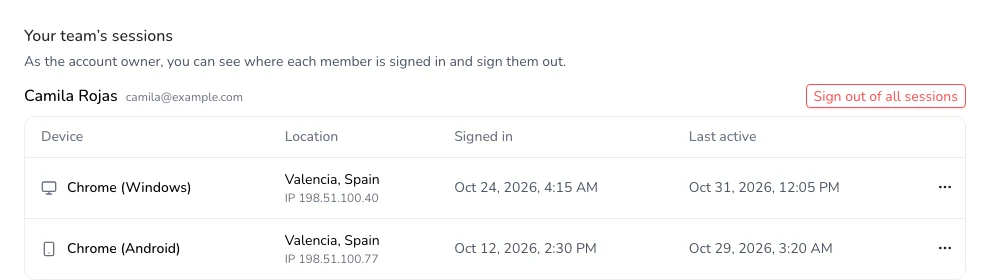
If you're the account **owner** and have members on your team, below you'll see **Your team’s sessions**: where each member is signed in to your account. You can sign out one session with **…** → **Sign out**, or all of a member's sessions with **Sign out of all sessions**. It's useful if someone lost their phone or left the team.
That device will need to sign in again. It can take up to 5 minutes to take effect.
To sign out of every device except the one you're using, click **Sign out of other sessions**. To sign out on this device, use **Log out** in your account menu, as usual.
## Your team's sessions
If you're the account **owner** and have members on your team, below you'll see **Your team’s sessions**: where each member is signed in to your account. You can sign out one session with **…** → **Sign out**, or all of a member's sessions with **Sign out of all sessions**. It's useful if someone lost their phone or left the team.
 Members who aren't owners only see their own sessions.
## If you don't recognize a session
1. Sign it out with **…** → **Sign out** (or use **Sign out of other sessions**).
2. Change your password.
3. Turn on [two-step verification](/help/en/other/turn-on-two-step-verification-and-passkeys), so nobody can get in even if they know your password.
Members who aren't owners only see their own sessions.
## If you don't recognize a session
1. Sign it out with **…** → **Sign out** (or use **Sign out of other sessions**).
2. Change your password.
3. Turn on [two-step verification](/help/en/other/turn-on-two-step-verification-and-passkeys), so nobody can get in even if they know your password.