---
title: "How do I turn on two-step verification and passkeys?"
description: "Protect your account: in Settings → Security, turn on a code from your authenticator app or a passkey (fingerprint, face or PIN) when you sign in."
sidebar:
order: 19
lastModified: 2026-10-30
translationKey: otros/como-activo-la-verificacion-en-dos-pasos-y-las-llaves-de-acceso
---
**Two-step verification** asks for more than your password when you sign in: a code from your phone or your passkey. Nobody gets into your account even if they know your password.
Everything is in **Settings → Security**.
## Turn on the authenticator app
You need an authenticator app on your phone, such as Google Authenticator, Microsoft Authenticator or 1Password.
1. In **Two-step verification**, next to **Authenticator app**, click **Set up**.
2. Enter your password and click **Continue**.
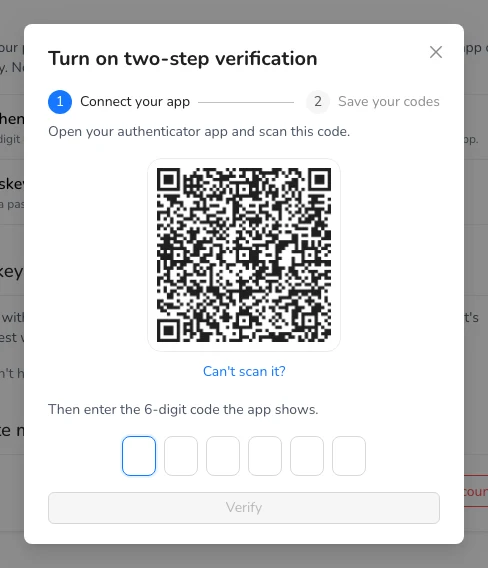
3. Open the app on your phone and scan the code. If you can't scan it, type the key shown below it into the app.
4. Enter the 6-digit code the app shows.
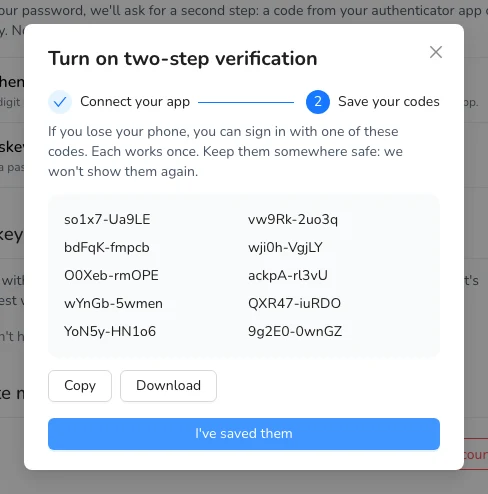
 5. Save your **backup codes**: copy or download them and keep them somewhere safe. If you lose your phone, you can sign in with one of them (each works once). Then click **I've saved them**.
 ## Signing in with two-step verification
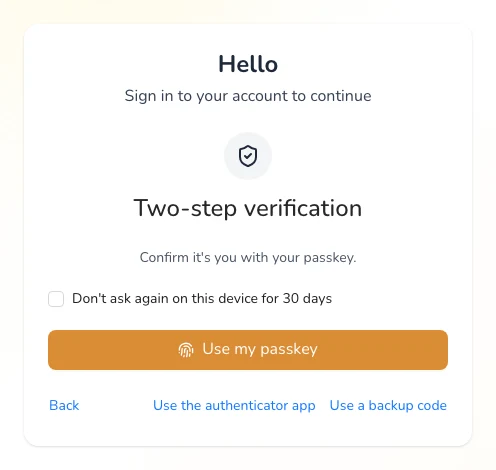
After your email and password, Almendra asks for the 6-digit code from your app. If you tick **Don't ask again on this device for 30 days**, it won't ask on that computer for that time.
Don't have your phone with you? Click **Use a backup code**.
## Signing in with two-step verification
After your email and password, Almendra asks for the 6-digit code from your app. If you tick **Don't ask again on this device for 30 days**, it won't ask on that computer for that time.
Don't have your phone with you? Click **Use a backup code**.
 ## Passkeys
A passkey lets you sign in with the fingerprint, face or PIN of your computer or phone, without typing your password.
1. In **Passkeys**, click **Add a passkey**.
2. Confirm with your fingerprint, face or PIN when your device asks.
3. Next time, on the sign-in page, click **Sign in with a passkey**.
Signing in with a passkey doesn't need the second step: it's as safe as the password and the code together.
### Use your passkey as the second step
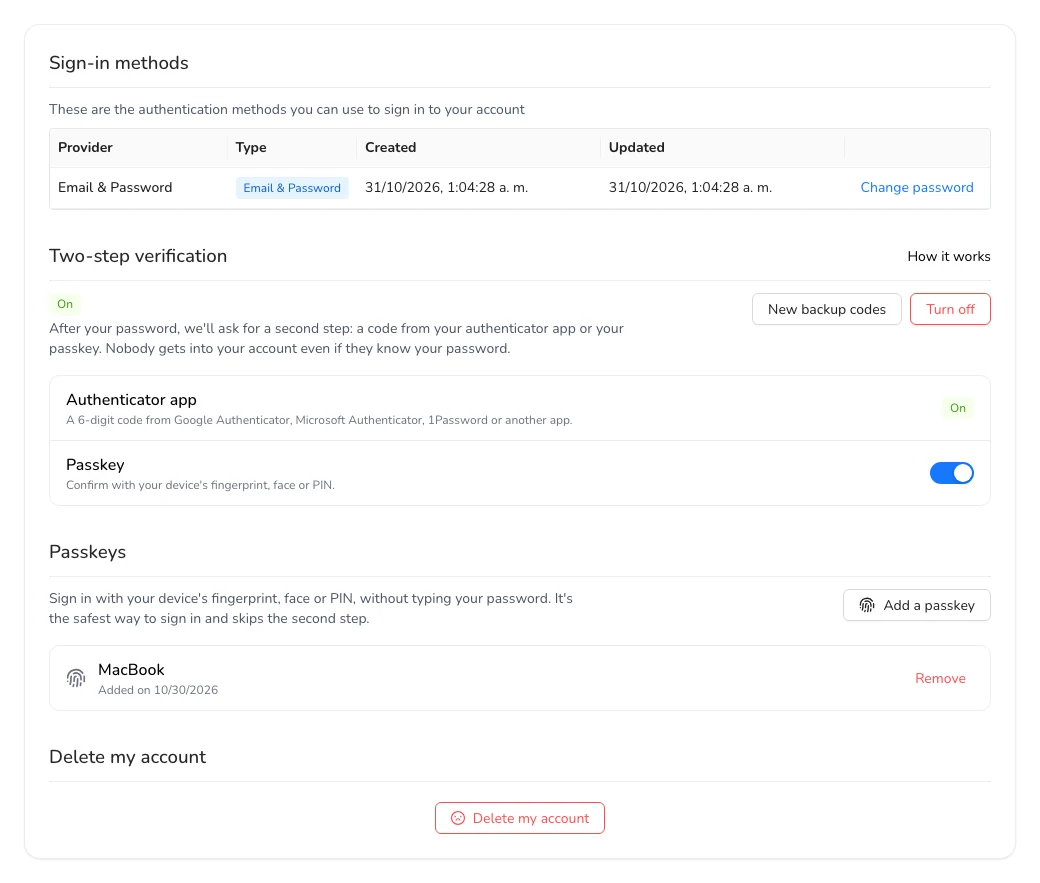
If you'd rather keep signing in with your password, you can use your passkey as the second step instead of the code: turn on the **Passkey** switch in **Two-step verification** and enter your password. If you didn't have the authenticator app yet, you'll also get your backup codes.
## Passkeys
A passkey lets you sign in with the fingerprint, face or PIN of your computer or phone, without typing your password.
1. In **Passkeys**, click **Add a passkey**.
2. Confirm with your fingerprint, face or PIN when your device asks.
3. Next time, on the sign-in page, click **Sign in with a passkey**.
Signing in with a passkey doesn't need the second step: it's as safe as the password and the code together.
### Use your passkey as the second step
If you'd rather keep signing in with your password, you can use your passkey as the second step instead of the code: turn on the **Passkey** switch in **Two-step verification** and enter your password. If you didn't have the authenticator app yet, you'll also get your backup codes.
 ## Turning it off
In **Two-step verification**, click **Turn off** and enter your password. To get new codes (the old ones stop working), click **New backup codes**.
If you sign in with Google or Microsoft, two-step verification is handled by that provider, from your Google or Microsoft account.
## Turning it off
In **Two-step verification**, click **Turn off** and enter your password. To get new codes (the old ones stop working), click **New backup codes**.
If you sign in with Google or Microsoft, two-step verification is handled by that provider, from your Google or Microsoft account.