---
title: "How do I fix a consultation payment?"
description: "If you recorded the wrong amount or payment method for a consultation, edit it from the package details. Finances and the pending balance update on their own."
sidebar:
order: 9
lastModified: 2026-10-28
translationKey: paquetes/como-corrijo-el-pago-de-una-consulta
---
A consultation's payment is recorded when you finish it. If you got the amount or the payment method wrong, you can fix it afterwards without deleting the consultation: its measurements, notes and plans stay as they are.
**Fix a payment**
1. Go to **Patients** and open the patient's profile.
2. Click **Active plan** (at the top, next to their name). The package details open.
3. Under **Payments done**, click **Edit** next to the payment you want to fix.
4. Change the **Amount** or the **Payment method** (Cash, Card or Others) and click **Save**.
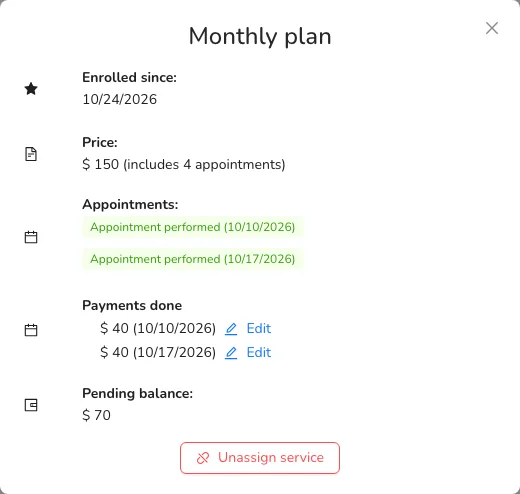
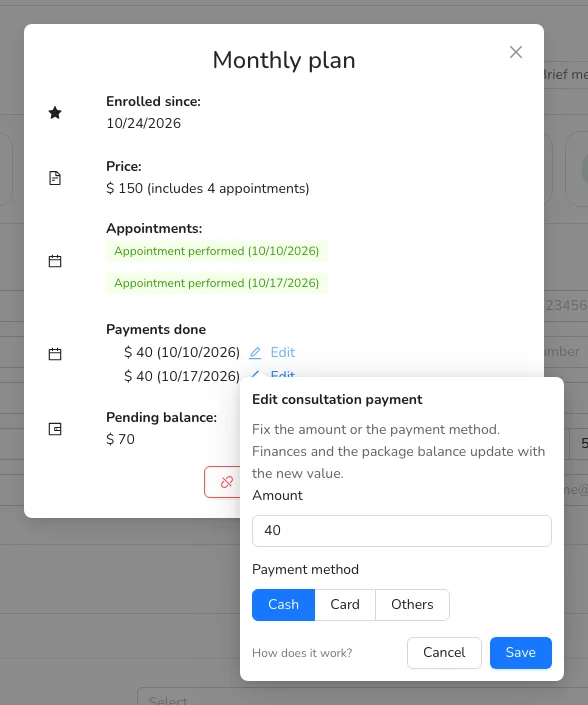 The package's **Pending balance** and your **Finance** page update right away with the new value.
If the package is no longer active (for example, because you unassigned it), go to **Schedule**, open one of that package's consultations and click **View service details**: you'll see **Edit** next to each payment there too.
**Saw the patient but didn't open the consultation in Almendra?**
If the package's consultation is still scheduled (for example, because you only logged their measurements with **Add past measurements**), its payment doesn't show and the package still counts it as pending. Close it without going through the whole consultation:
1. Go to **Schedule** and click the consultation. You can also do it from **Active plan**, on the patient's profile.
2. Click **Mark as done**. It only shows once the consultation's time has passed.
3. Enter the **Amount paid that day** and choose the **Payment method**. You'll see the package's **Pending balance** for reference.
4. Click **Save**.
The consultation is saved as done on its scheduled date, its payment shows under **Payments done** and in **Finance**, and the pending balance goes down. If the package was paid online, you don't need to enter an amount: the payment is already recorded. Your patient doesn't get any message.
**Good to know**
- To choose **Card**, first enter the commission card payments cost you in **Settings → General Settings**.
- Payments your patient made online (for example, with Stripe or Mercado Pago when booking) can't be edited.
**Assigned the wrong package?**
Open their profile, click **Active plan** and then **Unassign service**. Then click **Assign service** and choose the right one. Keep in mind that unassigning a package deletes the scheduled consultations that haven't happened yet; past consultations and their payments are kept.