---
title: "How to add my office hours?"
description: "Set up your office hours in Almendra from General Settings: the prerequisites and how to create time blocks by day, hour, and consultation type."
sidebar:
order: 11
lastModified: 2024-08-13
translationKey: pagina-personal/como-agregar-mi-horario-de-atencion
---
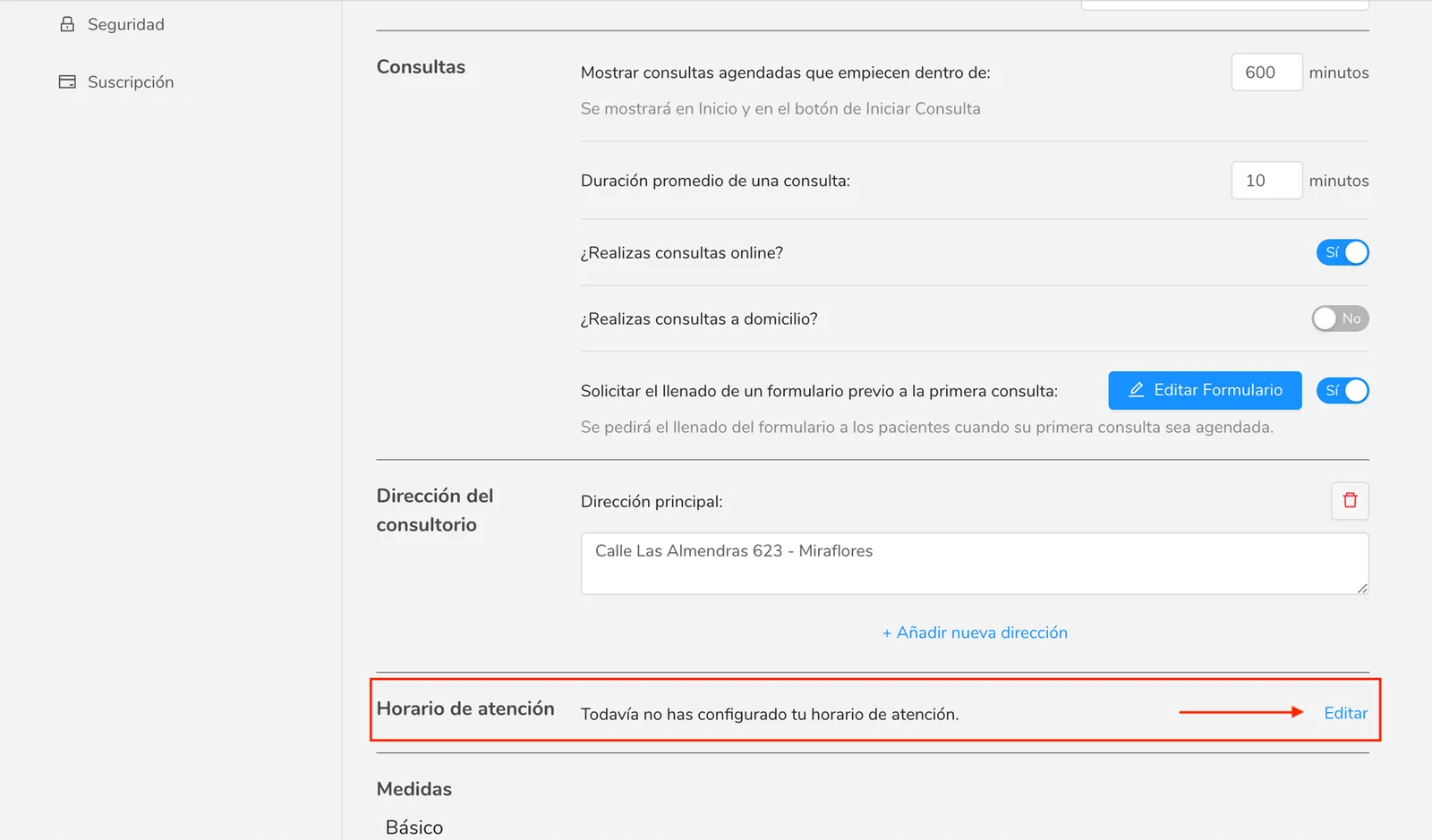
**Requirements to set your office hours:**1. Enter the average duration of a consultation.2. Have at least one modality activated. This means selecting at least one of the following:\* In-Person Consultation (having entered at least one office address)\* Online Consultation (having selected that you conduct online consultations)\* Home Consultations (having selected that you conduct home consultations)
These options can be found in the "General Settings" menu (/configuracion/generales) under "Consultations" and "Office Address" sections.
**How to add your business hours?**
In the "General Settings" menu (/configuration/general) in the "Business Hours" section, click "Edit" to enter the schedule editor.
 When entering the schedule editor, you can create your service blocks in the following two ways:- Clicking on the "**Create schedule**" button (redish button)- Clicking and dragging down on the desired day and hours to create the service block.
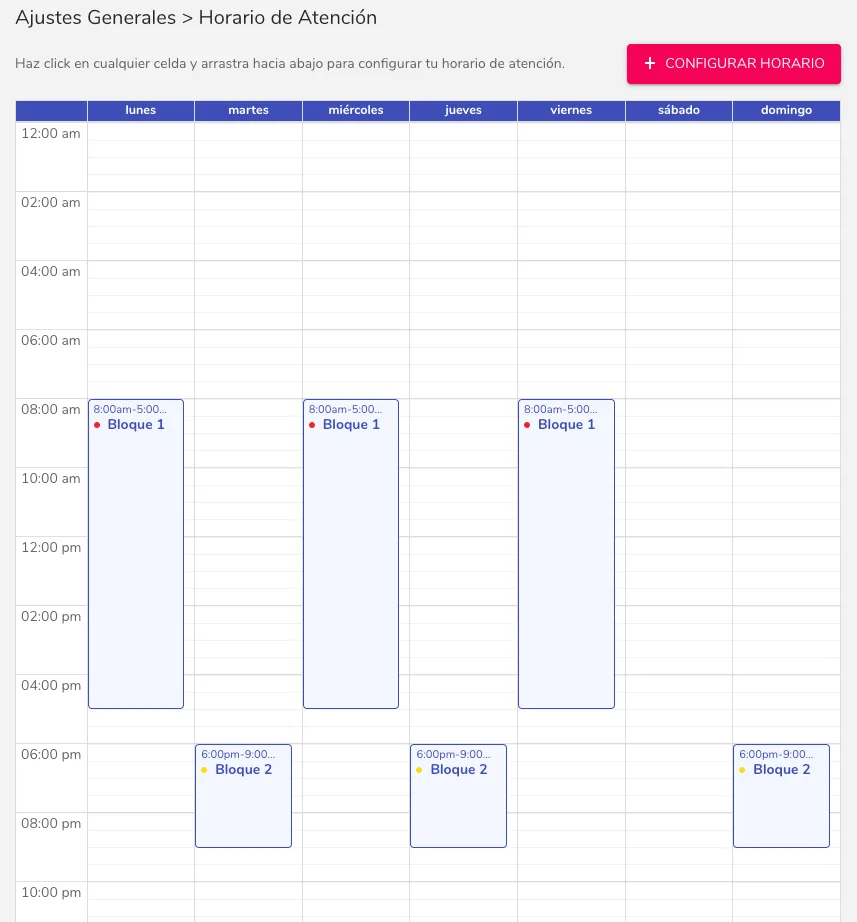
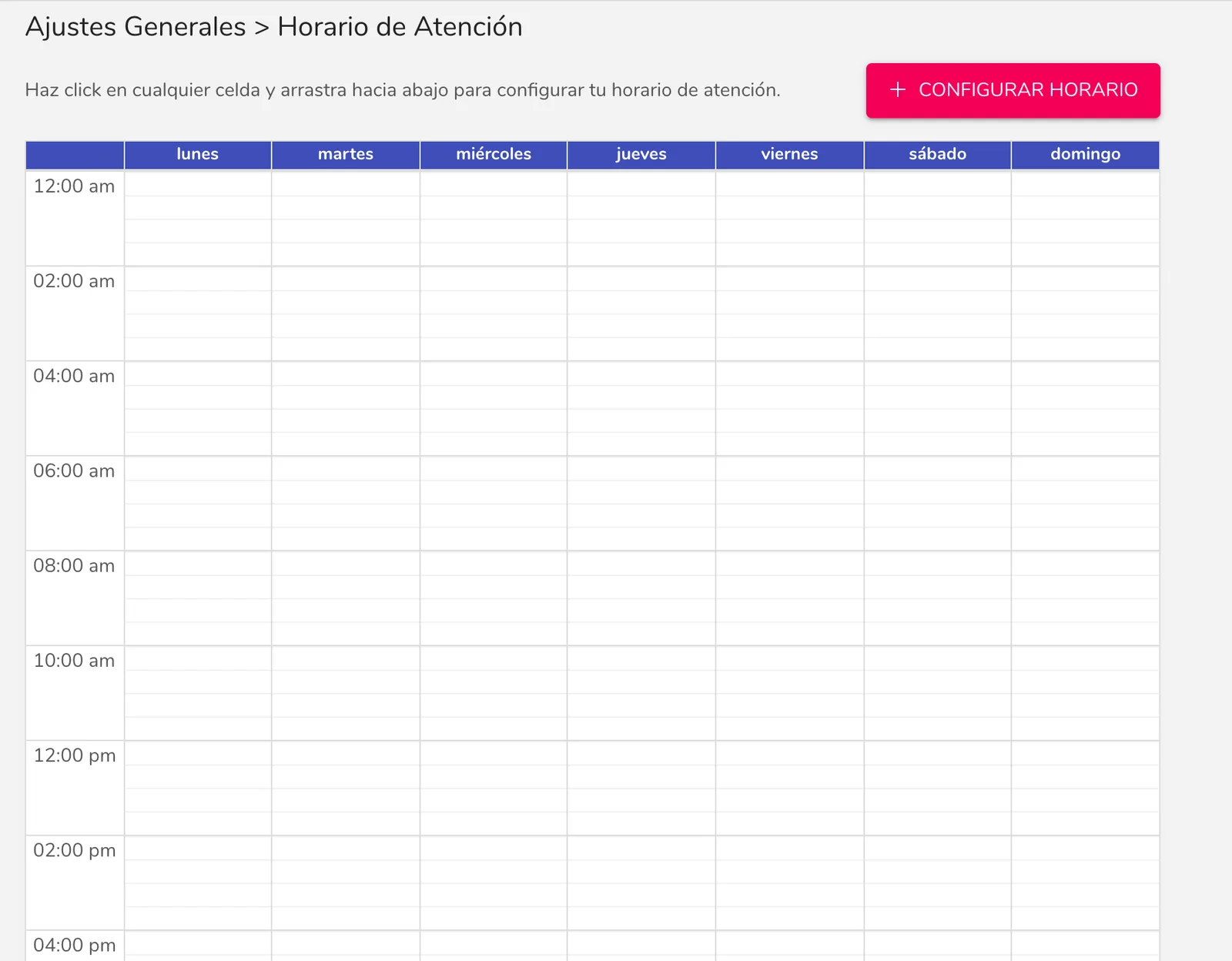 To help with the explanation, as an example, we want to create the following service hours:- Monday, Wednesday and Friday from 8am to 5pm: In-Person Consultation- Tuesday, Thursday and Saturday from 6pm to 9pm: Online Consultation
After clicking and dragging on Monday from 8am to 5pm, a pop-up window will open with the selection information:
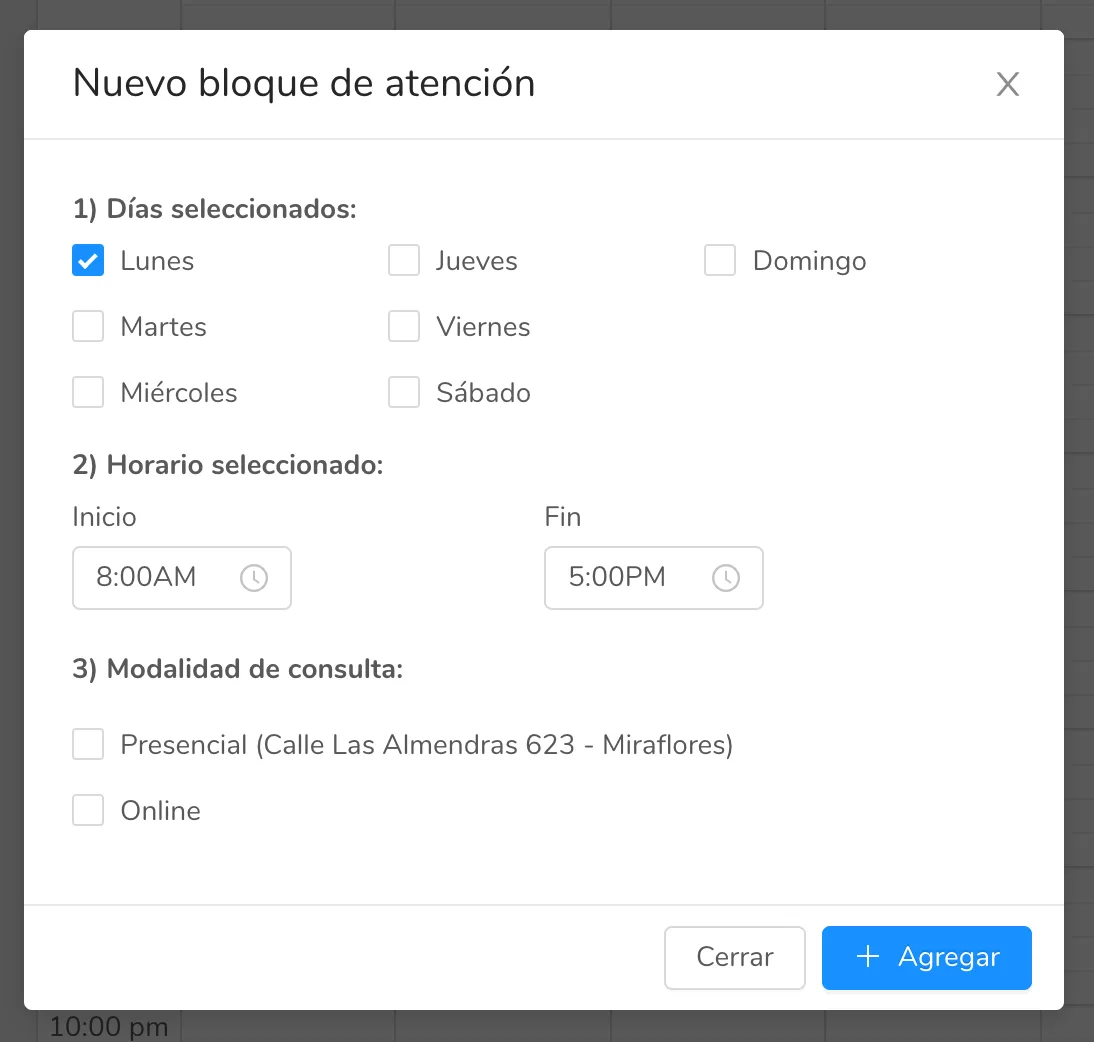
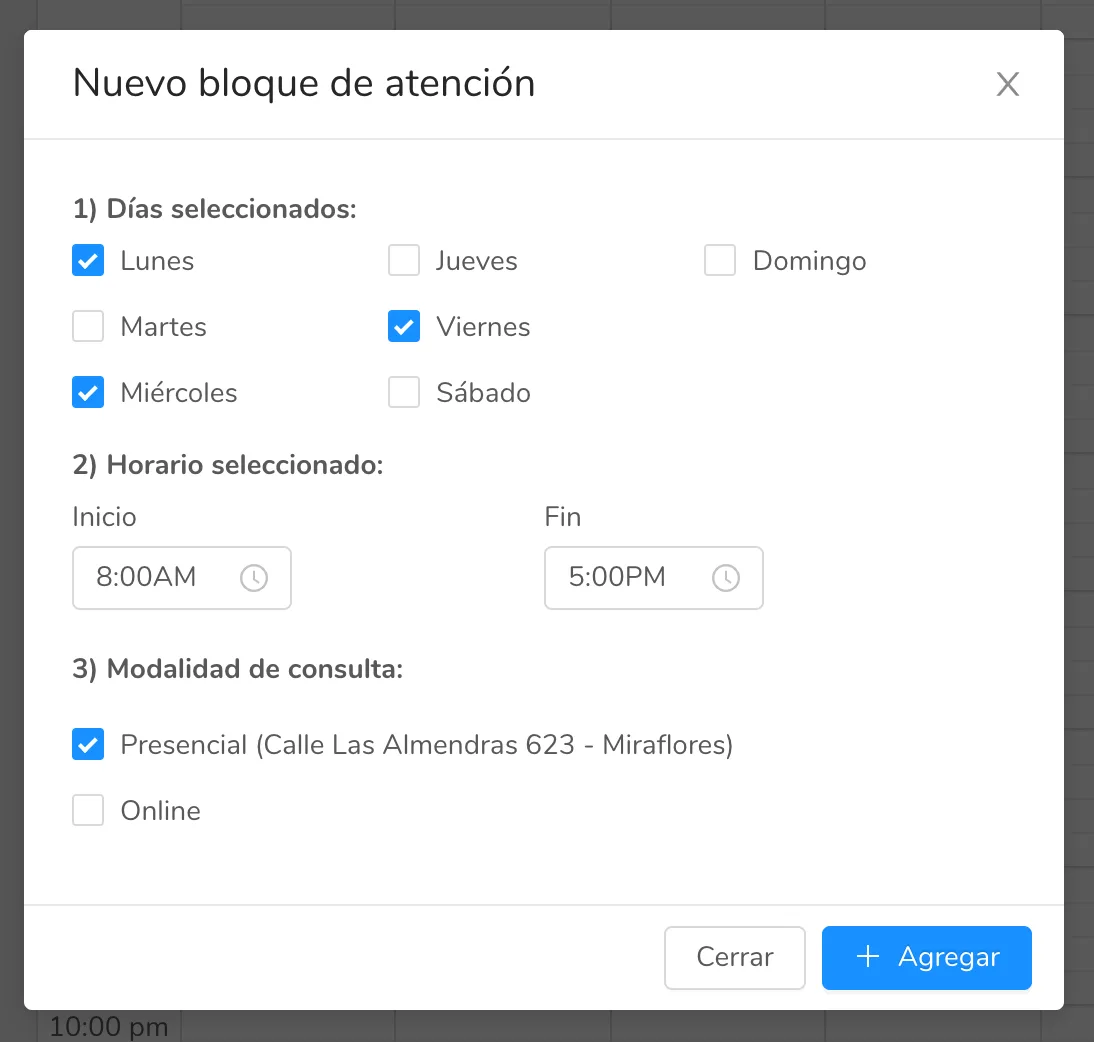 After making the changes, we will click the "+ Add" button to add the schedule block. We will repeat this process to complete the example service hours.Finally, our business hours will look like the following image:
 **Done!** Follow this process with your available blocks to create your service hours.