
How do I get paid with payment links?
Create a payment link in Almendra, share it by WhatsApp or email and get paid by card, Mercado Pago or bank transfer. Confirm payments and give refunds.
Updated October 18, 2026
A payment link lets you charge for anything: a plan, an extra session, a workshop or whatever you need. You create it in Almendra, send it by WhatsApp or email, and the person pays on a page with your name, without creating an account. Almendra takes no commission: the money goes straight to your account (only your payment provider’s fee applies).
Before you start: choose how people can pay you
In Settings → Integrations you can:
- Connect Stripe (card, Apple Pay and Google Pay) or Mercado Pago (currently in Peru). These payments are confirmed automatically.
- Add your details in Transfers and QR: your bank account or the wallet people use in your country. In Type, Almendra lists the most used ones in your country first (for example Zelle and Venmo in the US, Bizum in Spain, Pix in Brazil or Yape in Peru) and tells you what details to write. In this case, you confirm when the money arrives.
Create a payment link
- Go to Payment links in the side menu and click New payment link.
- Fill in What it is for and the Amount. If it’s for one of your packages, pick it in From a package and the name and price are filled in.
- In How they can pay, tick the payment methods you want to accept.
- Turn on Single payment if the link is for one person: it closes once someone pays. Leave it off so several people can pay the same link (for example, for a workshop).
- If you like, set a date in Valid until.
- Click Create link. The link is copied automatically, ready to paste wherever you want.
Share the link
In the list of links you have Copy link and Send on WhatsApp. The link looks like pay.almendra.io/… and works on any phone or computer.
How your client pays
The person opens the link, sees what it’s for and the amount, enters their name and email and chooses how to pay:
- By card or Mercado Pago, they pay on that provider’s secure page and come back to a confirmation.
- By transfer or QR, they see your payment details, send the money and then tap I’ve paid (they can add the transaction reference). You get an email letting you know.
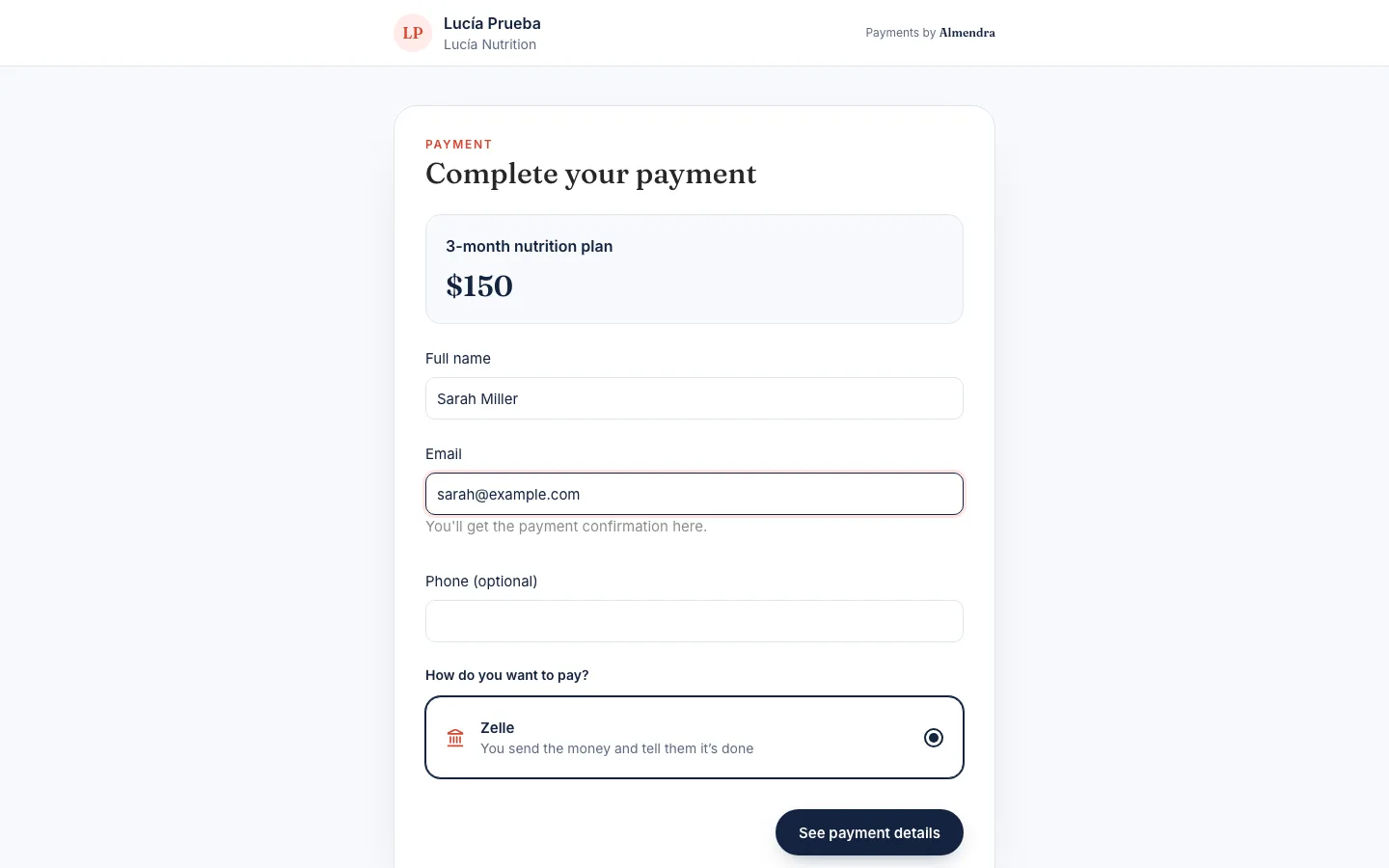
If the payer’s email belongs to one of your patients, the payment is linked to that patient.
Follow your payments
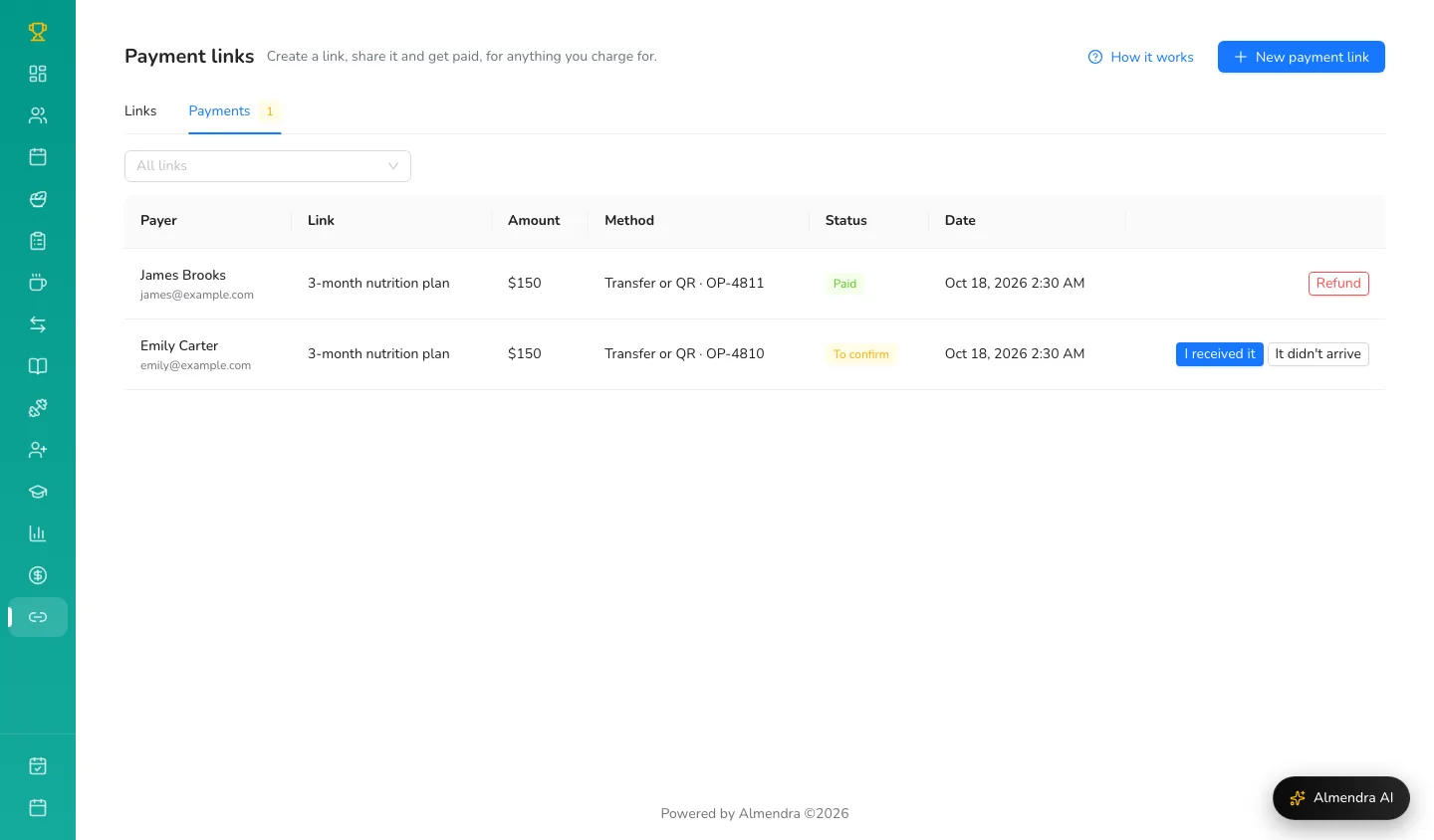
The Payments tab shows every payment with its status:
- To confirm: the person says they’ve sent the money. Check your account and click I received it, or It didn’t arrive if you can’t find it.
- Paid, Processing (for example, a cash payment that isn’t complete yet), Not paid, Expired or Refunded.
Refund a payment
On a Paid payment, click Refund and choose All of it or Part of it. For card or Mercado Pago payments, the refund is made from Almendra. If it was a transfer or QR payment, send the money back yourself; Almendra only records it.
Pause or archive a link
In each link’s menu (the three dots) you can Pause it so nobody can pay it for a while, Resume it, or Archive it when you no longer need it. Payments you already received stay.
Can’t find what you’re looking for?
Our team replies within 1 business day, Monday to Friday 9:30 AM – 6:00 PM (GMT-5).