
How do I fix a consultation payment?
If you recorded the wrong amount or payment method for a consultation, edit it from the package details. Finances and the pending balance update on their own.
Updated October 28, 2026
A consultation’s payment is recorded when you finish it. If you got the amount or the payment method wrong, you can fix it afterwards without deleting the consultation: its measurements, notes and plans stay as they are.
Fix a payment
- Go to Patients and open the patient’s profile.
- Click Active plan (at the top, next to their name). The package details open.
- Under Payments done, click Edit next to the payment you want to fix.
- Change the Amount or the Payment method (Cash, Card or Others) and click Save.
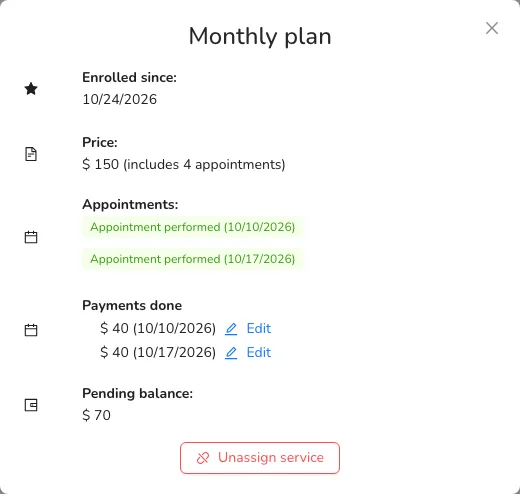
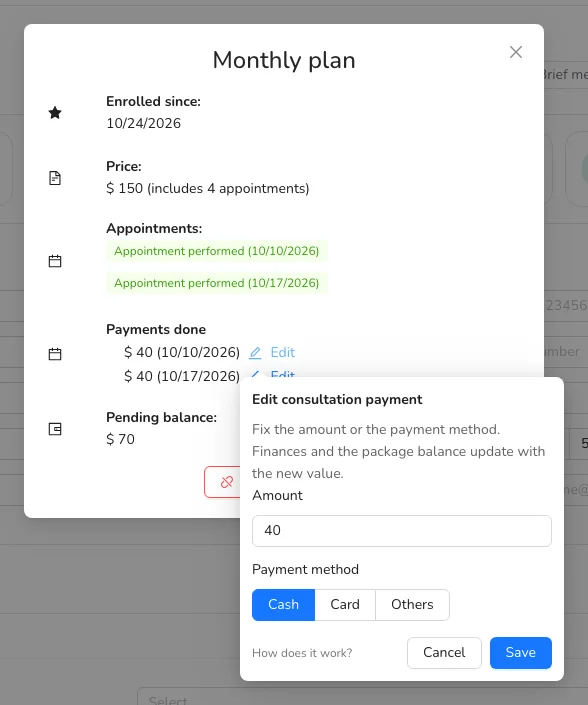
The package’s Pending balance and your Finance page update right away with the new value.
If the package is no longer active (for example, because you unassigned it), go to Schedule, open one of that package’s consultations and click View service details: you’ll see Edit next to each payment there too.
Saw the patient but didn’t open the consultation in Almendra?
If the package’s consultation is still scheduled (for example, because you only logged their measurements with Add past measurements), its payment doesn’t show and the package still counts it as pending. Close it without going through the whole consultation:
- Go to Schedule and click the consultation. You can also do it from Active plan, on the patient’s profile.
- Click Mark as done. It only shows once the consultation’s time has passed.
- Enter the Amount paid that day and choose the Payment method. You’ll see the package’s Pending balance for reference.
- Click Save.
The consultation is saved as done on its scheduled date, its payment shows under Payments done and in Finance, and the pending balance goes down. If the package was paid online, you don’t need to enter an amount: the payment is already recorded. Your patient doesn’t get any message.
Good to know
- To choose Card, first enter the commission card payments cost you in Settings → General Settings.
- Payments your patient made online (for example, with Stripe or Mercado Pago when booking) can’t be edited.
Assigned the wrong package?
Open their profile, click Active plan and then Unassign service. Then click Assign service and choose the right one. Keep in mind that unassigning a package deletes the scheduled consultations that haven’t happened yet; past consultations and their payments are kept.
Can’t find what you’re looking for?
Our team replies within 1 business day, Monday to Friday 9:30 AM – 6:00 PM (GMT-5).