
What is the booking system and how does it work?
Almendra's booking system lets patients book appointments online from your Personal Page. Turn it on and set session length, hours and packages.
Updated October 25, 2026
This is an overview of the booking system. The booking system lets patients (existing or new) schedule appointments with you online. It’s as simple as setting up your available hours and locations; patients will be able to see them and book an appointment.
The goal of the booking system is to save time for both the nutritionist and the patient, so they don’t have to coordinate appointments and availability.
Setting up the booking system
To set up your booking system, go to the “Online booking” section in Settings → Web Tools. There you will find these options:
1. Enable online appointment booking.
2. Allow anyone to book an appointment.
3. Minimum booking notice.
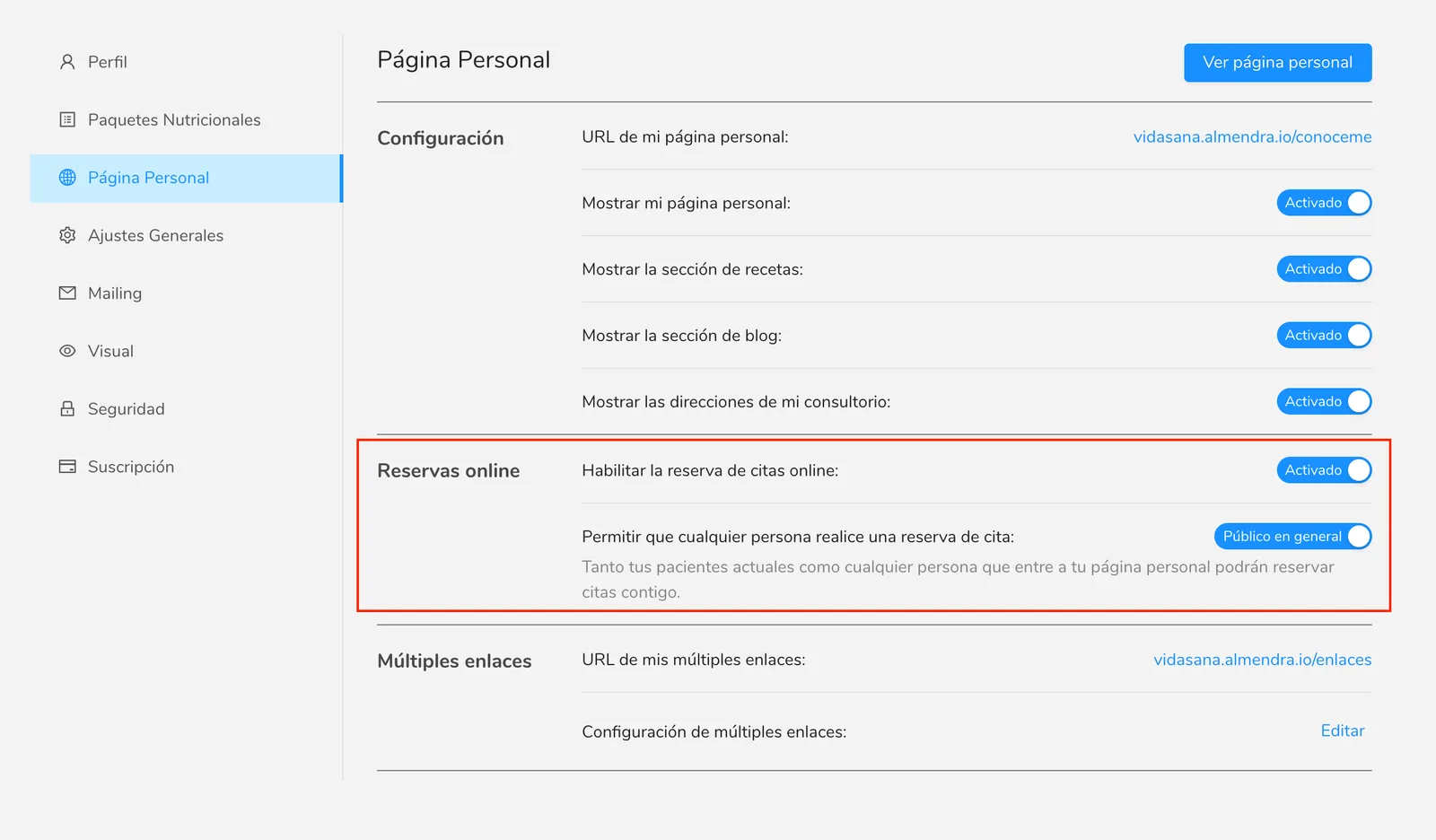
The first option turns the booking system on or off. If it is turned off, no one will be able to book an appointment online.
The second option controls whether only your current patients or anyone can book an appointment with you. Very simple!
The third option stops last-minute bookings. Choose how many hours ahead your patients must book, from 1 hour to 72 hours. For example, with 24 hours, someone booking on Monday at 10:00 will see Tuesday at 10:00 as the first available time, or later. With “No minimum”, they can book any time that hasn’t passed yet. It only applies to bookings your patients make: you can still add appointments from your calendar whenever you like.
Requirements for using the booking system:
Having online booking enabled is not enough to activate this feature. You also need the following settings:
1. Have entered the average duration of an appointment.
That is, how many minutes does one of your appointments last on average? This is used to calculate the available time slots for booking. You’ll find this option in the “Appointments” section of the “General Settings” settings menu (/configuraciones/generales).
2. Have created your business hours.
Creating your business hours answers the questions: On which days and at what times do you see patients? Which appointment types do you offer (in-person, home visit, or online)? You’ll find this option in the “Business hours” section of the “General Settings” settings menu (/configuraciones/generales).
We recommend following this guide:
3. Have made at least one nutritional package public.
That is, which nutritional packages could your patients choose when booking an appointment? You’ll find this option in the “Health Services” settings menu (/configuraciones/paquetes), by clicking the three dots in the top right corner of the package whose visibility you want to change to public.
We recommend following the guide on how to change the visibility of a nutritional package.
About business hours:
By clicking “Add hours” you can choose on which days and at what times you want to enable online booking. You can also add restricted hours (for example, if you don’t want to see patients during lunch).
If you wanted to add another block, for example “Sunday”, you would click “Add hours” and select only Sunday, its hours, and the corresponding addresses.
How does the booking system work?
Once you have set everything up, a “Book appointment” button will appear on your personal page. You can also share the direct link to your bookings: your Almendra address followed by /booking (for example, yourname.almendra.io/booking).
When they open it, the person chooses “I’m already a patient” or “It’s my first time”:
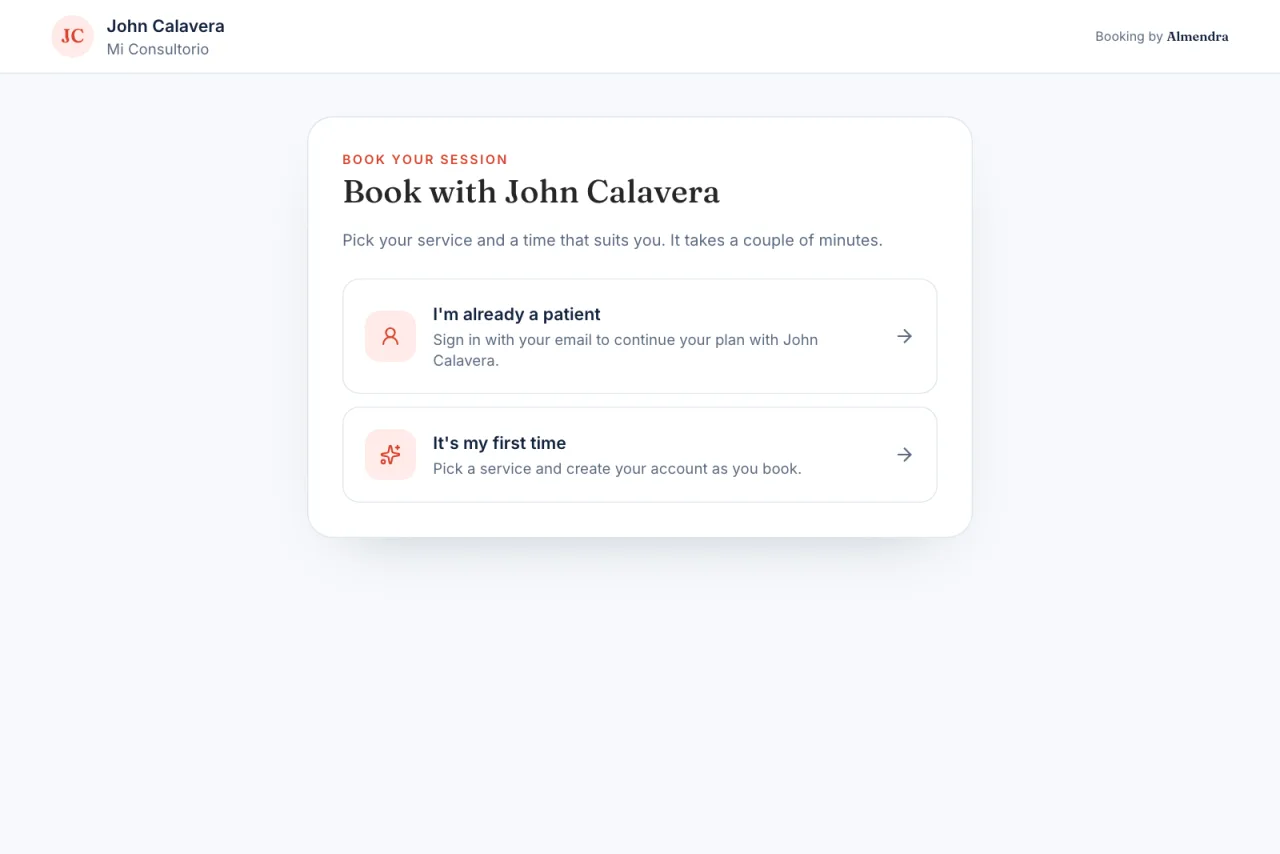
- If it’s their first time, they pick one of your public packages, then the day and time, and fill in their details. To confirm their email, we send them a 6-digit code.
- If they’re already your patient, they sign in with their email (with a code we send them, or with their password if they’ve created one) and skip the details step. If they have a plan in progress, they don’t pick a package: they see how many sessions they’ve booked and book the next one.
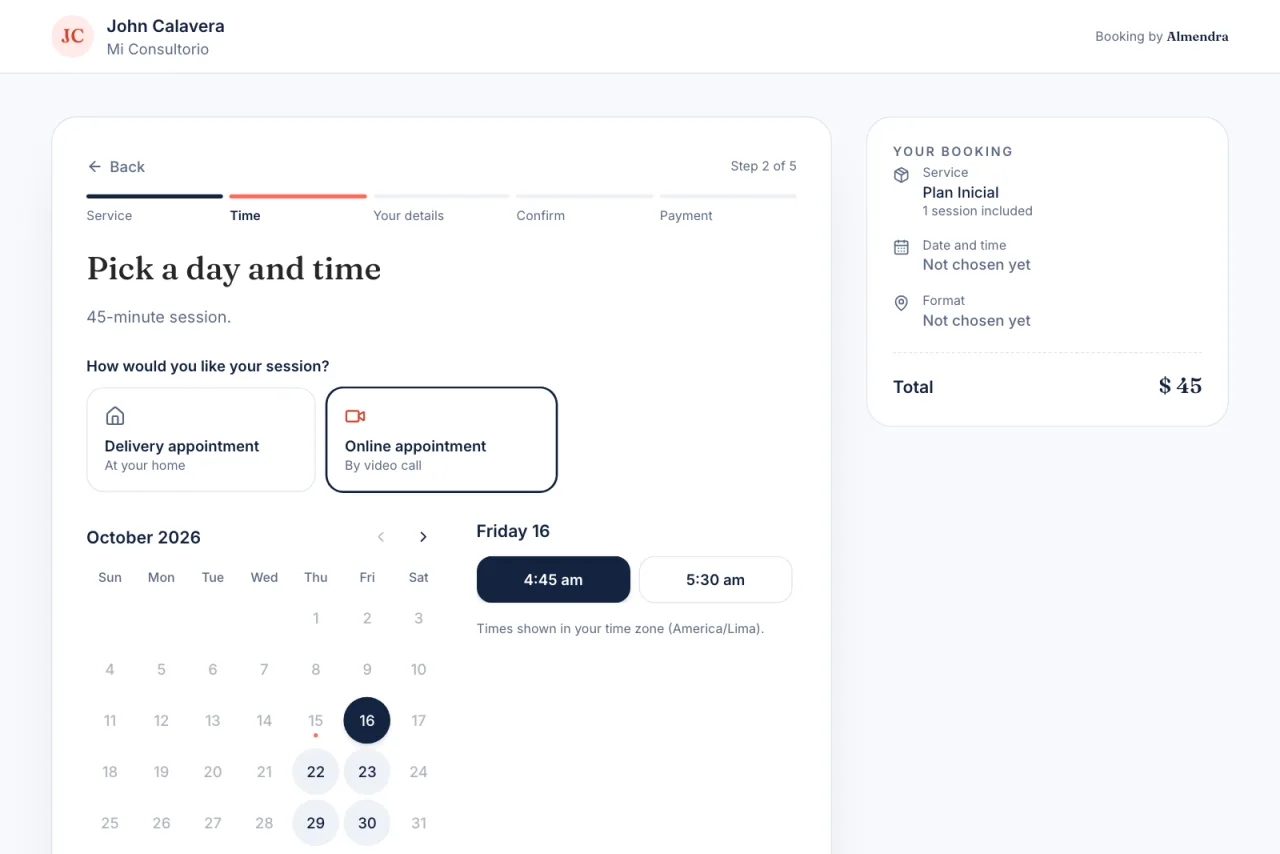
To choose the time, the patient selects the session type (in person, home visit or online), a day on the calendar and an available time. Times are shown in their own time zone. If they choose a home visit, they’re asked for the address.
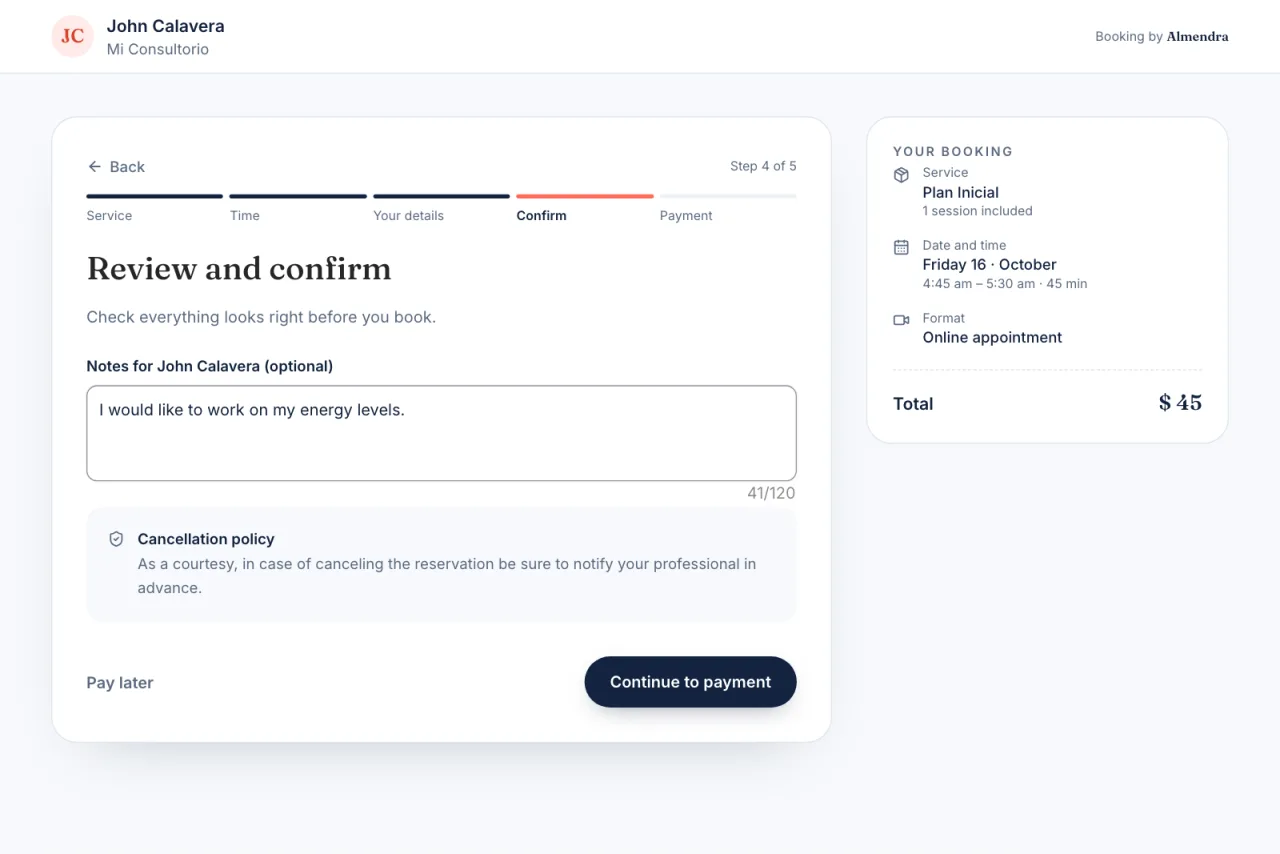
Finally, they review a summary of their booking, can leave you a note, and see your cancellation policy. If you charge when they book, they go on to the “Payment” step (Mercado Pago, PayPal or Stripe). If you allow paying later, they also see a “Pay later” option.
As soon as the patient confirms, they see “Booking confirmed!”, you receive an email with the details, and the appointment automatically appears in your calendar. If someone else booked the same time in the meantime, they’re told so they can pick another one.
Do you have any other questions? Contact us through the chat!
Can’t find what you’re looking for?
Our team replies within 1 business day, Monday to Friday 9:30 AM – 6:00 PM (GMT-5).