
How do I reschedule or edit the date of an appointment?
Reschedule an appointment in Almendra from your Schedule: open it, click Edit, and change the date and time. The reminder email updates if not yet sent.
Updated January 7, 2022
If you scheduled an appointment with the wrong patient, delete that appointment and schedule a new one. If you scheduled an appointment with the right patient but at the wrong time or date, do the following:
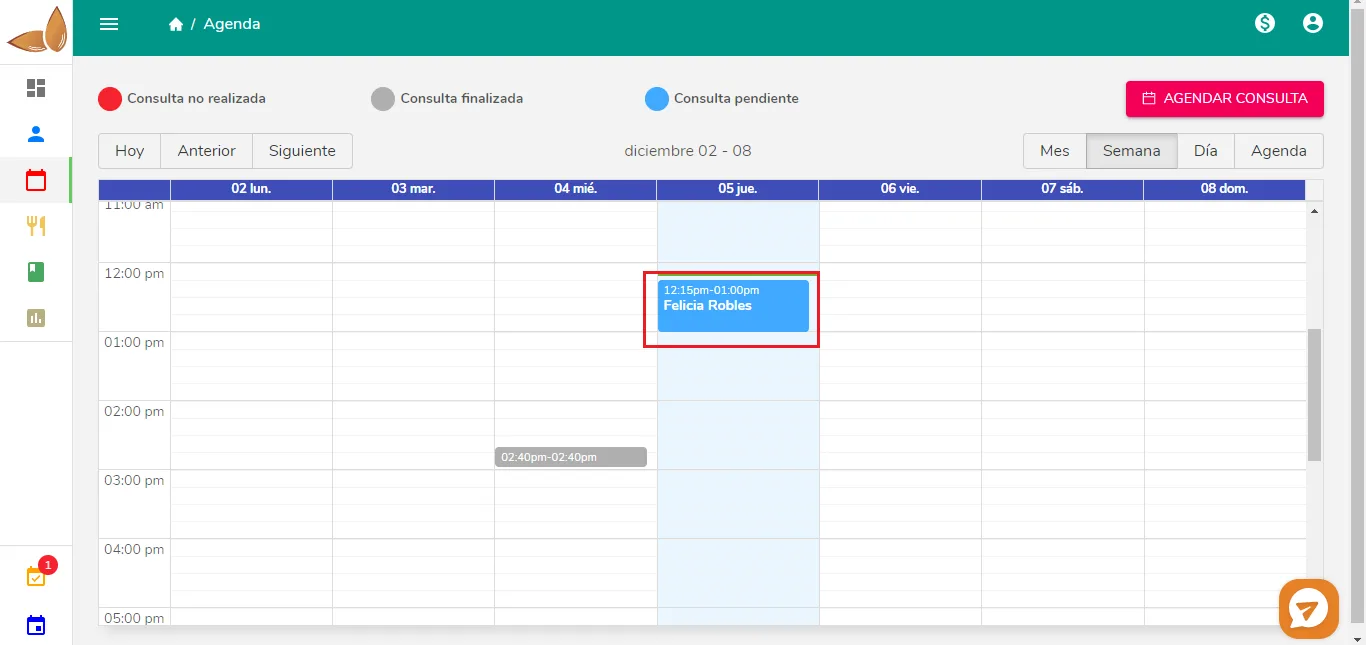
To reschedule or edit an appointment, go to Schedule and click the appointment you want to edit:
A pop-up window will open with the appointment details. Click Edit:
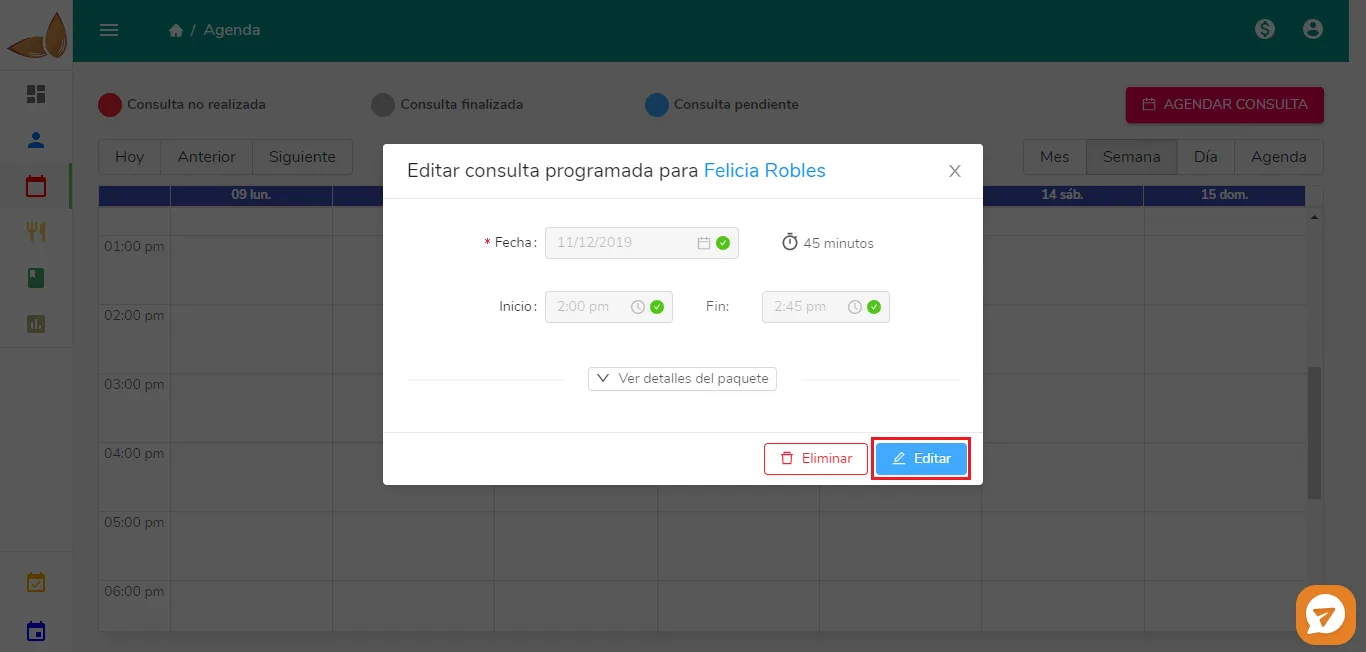
Enter the date and time you want and then click Save. Done! The appointment has been edited.
Keep in mind that if the appointment reminder email (only available on the advanced plan or higher) hasn’t been sent yet, a new one will be generated for the time and day you selected. Check your reminder email settings and work out whether it has already been sent. For example, if the reminder email is sent 2 days before the appointment and you’re editing the appointment 5 days before it takes place, then it hasn’t been sent yet, and a new one will be generated and sent 2 days before the new start date.
Can’t find what you’re looking for?
Our team replies within 1 business day, Monday to Friday 9:30 AM – 6:00 PM (GMT-5).