
How does the new patient form work?
Set up the new patient form in General Settings and send it when booking a first appointment. Answers show up right away in the patient's profile.
Updated January 7, 2022
First, make sure the form is enabled in your settings.
Go to General Settings:
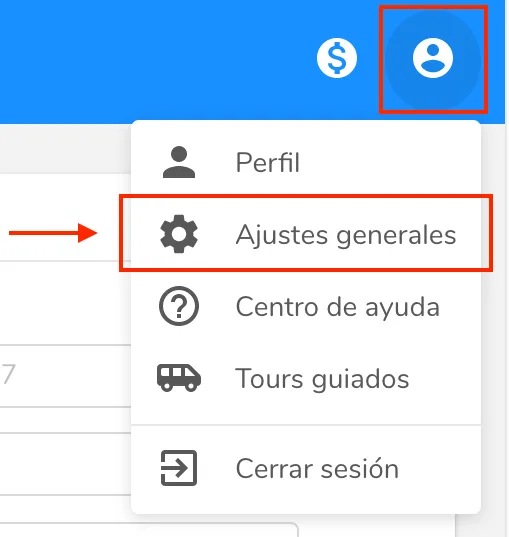
Scroll down a bit until you find the “Appointments” section. There, you will see the following:
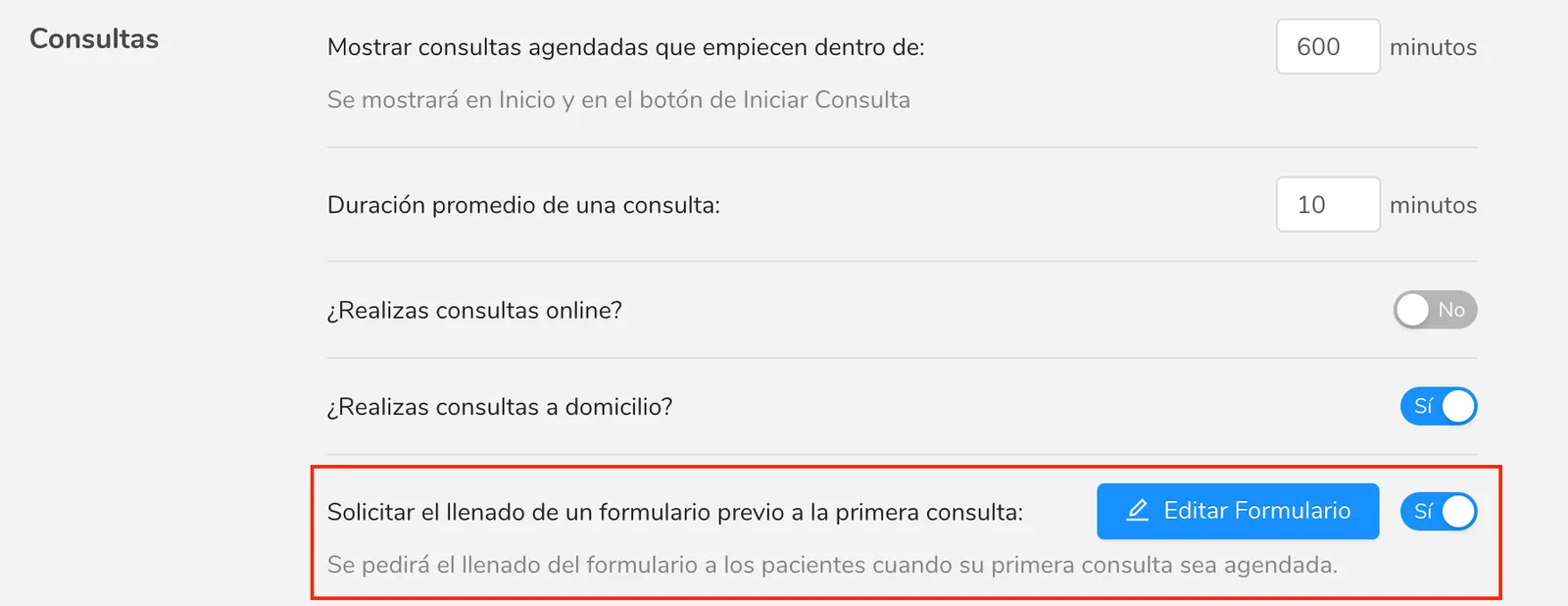
If you haven’t set up the form yet, the button will say “Create form” instead of “Edit form”. Make sure the toggle on the right is set to “Yes” to request that the form be filled out.
Click on the “Create form” or “Edit form” button and you will see the following window:
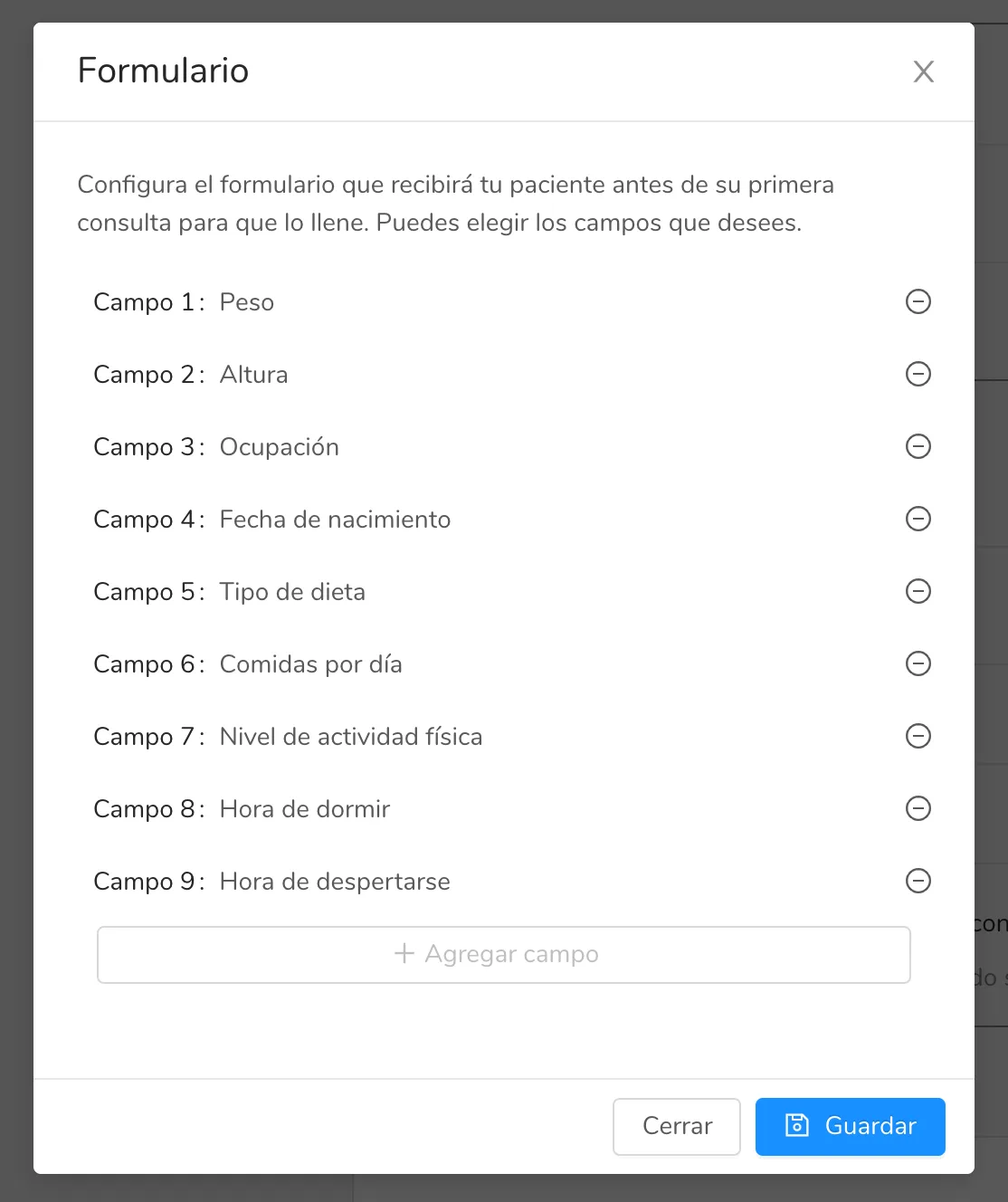
In this window you can select the fields you want your patients to fill out before their first scheduled appointment. To add fields, click on “Add field” and select the options you want to build your form. To remove a field, click on the “-” button to the right of each field.
When you’re done, click on “Save”.
How is the new patient form sent?
When you schedule an appointment with a new patient (who hasn’t had an appointment yet and has an email in their basic information), you will find the “Send form” option at the bottom of the window. After selecting “Yes” and scheduling the appointment, the patient will immediately receive an email to fill out the form you created.
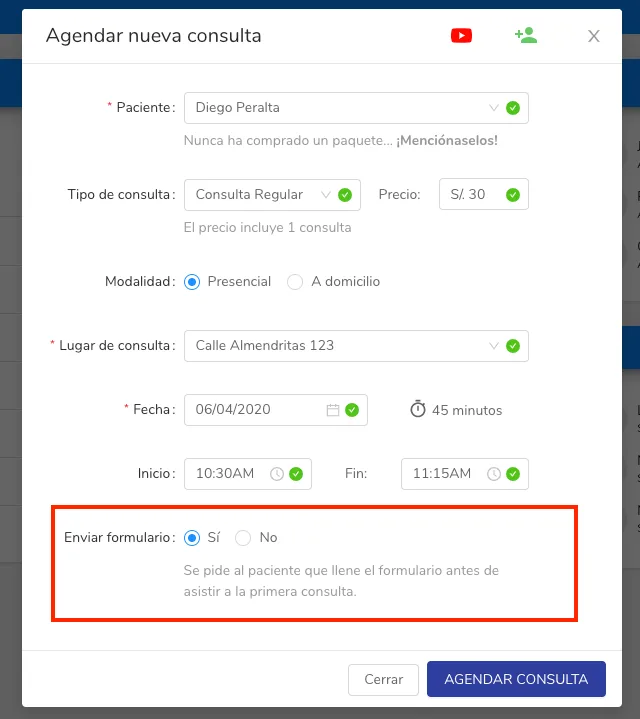
As soon as the patient finishes filling out their form, you will be able to see the information they entered right away in their patient profile.
Can’t find what you’re looking for?
Our team replies within 1 business day, Monday to Friday 9:30 AM – 6:00 PM (GMT-5).