How do I set up single sign-on (SSO)?
On the Teams plan, your team signs in with your organization's account (Google Workspace, Microsoft Entra ID or Okta). Set it up in Settings → Organization.
Single sign-on (SSO) lets your team sign in to Almendra with your organization’s account, such as Google Workspace, Microsoft Entra ID or Okta, with no extra password. It’s part of the Teams plan, and only the owner or an admin can set it up.
It works with any provider that supports OpenID Connect. You’ll probably need whoever manages your organization’s accounts for the steps in your provider.
1. Create the app in your provider
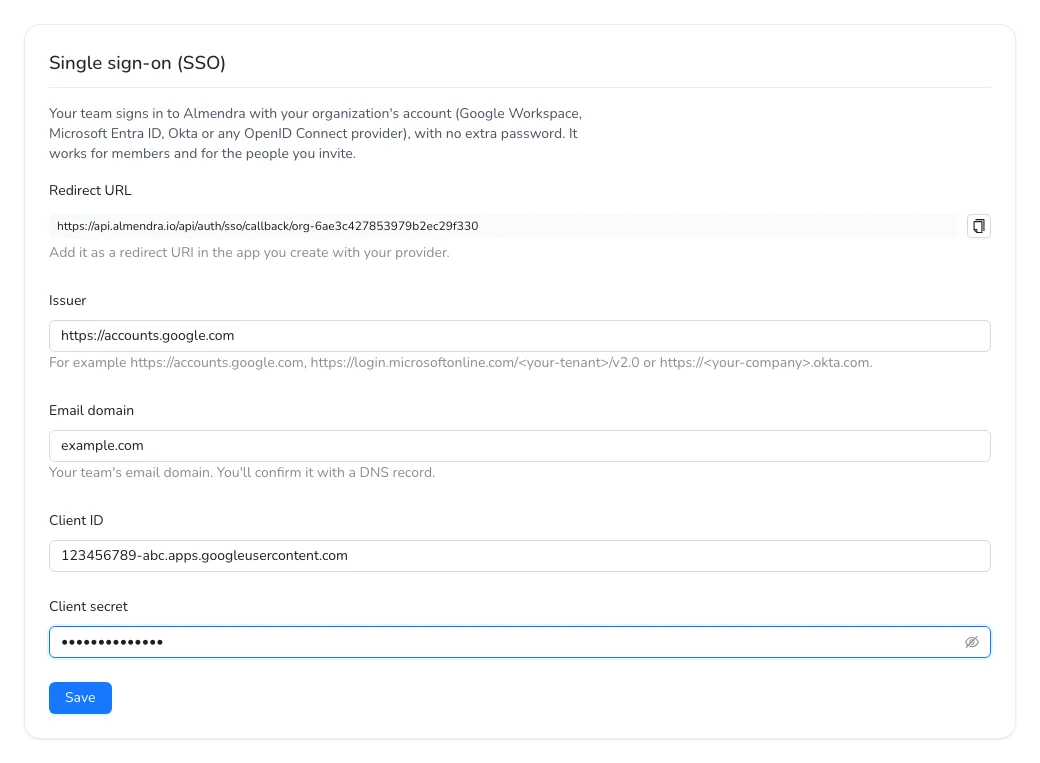
- In Almendra, go to Settings → Organization and scroll to Single sign-on (SSO).
- Copy the Redirect URL.
- In your provider, create a web app (OpenID Connect / OAuth) and paste that URL as its redirect URI.
- Your provider gives you a Client ID and a Client secret.
2. Fill in the details in Almendra
- Issuer: your provider’s address. For example,
https://accounts.google.com(Google Workspace),https://login.microsoftonline.com/<your-tenant>/v2.0(Microsoft Entra ID) orhttps://<your-company>.okta.com(Okta). - Email domain: your team’s email domain, for example
yourclinic.com. - Client ID and Client secret: the ones your provider gave you.
Click Save.
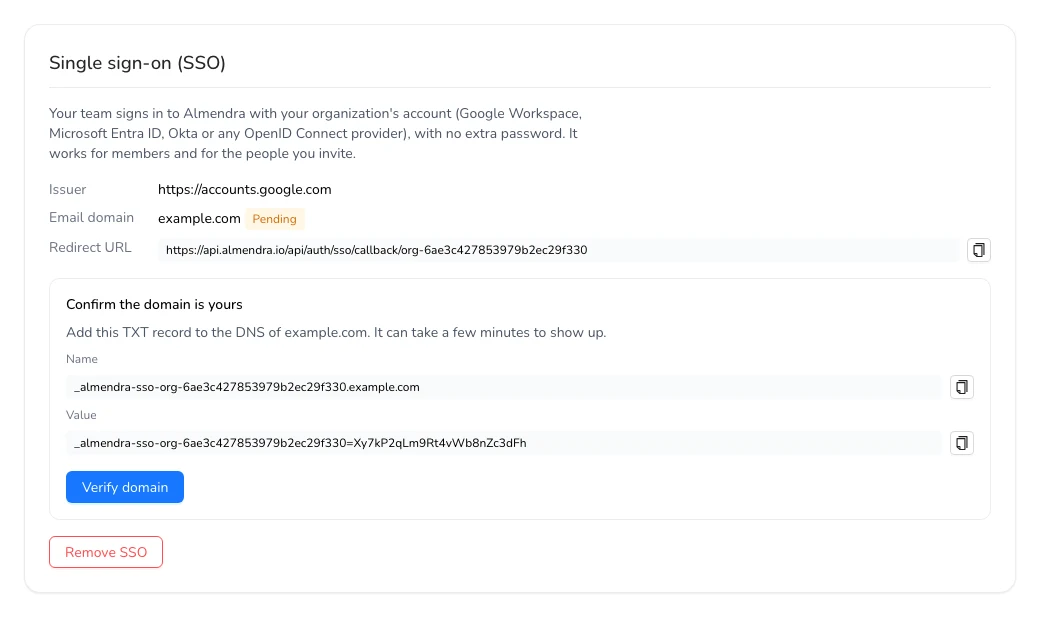
3. Confirm the domain is yours
Almendra shows a TXT record with its Name and Value. Add it to your domain’s DNS (where you bought it or where you manage your email) and click Verify domain. The record can take a few minutes to show up.
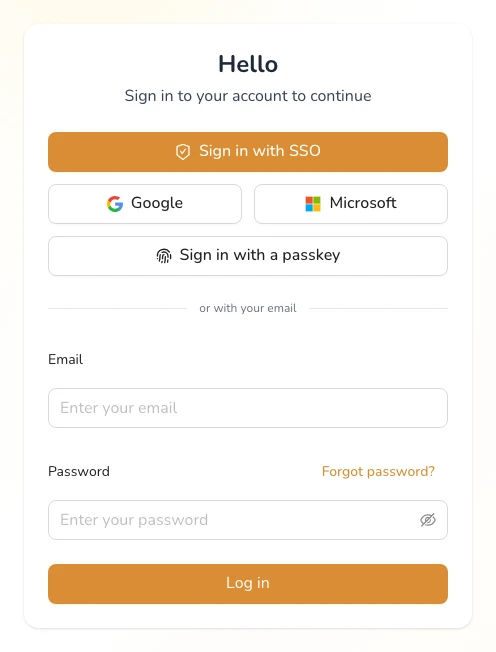
4. Sign in with SSO
Once the domain is verified, your organization’s sign-in page shows Sign in with SSO.
- Your organization’s members sign in with your provider’s account and see everything as before.
- People you invite can create their account by signing in with SSO, then accept the invitation.
- If someone at your company signs in with SSO without an invitation, Almendra asks them to request one. That way you decide who’s on the team.
FAQ
What happens if I leave the Teams plan? Your setup is saved, but Sign in with SSO stops working. Your team can sign in with email and password, Google or Microsoft. If you go back to Teams, it works again.
How do I change providers? Click Remove SSO and set it up again with the new one. Nobody loses their account or gets signed out. Meanwhile, your team can sign in with email and password; anyone who never set one can use Forgot password?. With the new provider you’ll verify the domain again.