How do I turn on two-step verification and passkeys?
Protect your account: in Settings → Security, turn on a code from your authenticator app or a passkey (fingerprint, face or PIN) when you sign in.
Two-step verification asks for more than your password when you sign in: a code from your phone or your passkey. Nobody gets into your account even if they know your password.
Everything is in Settings → Security.
Turn on the authenticator app
You need an authenticator app on your phone, such as Google Authenticator, Microsoft Authenticator or 1Password.
- In Two-step verification, next to Authenticator app, click Set up.
- Enter your password and click Continue.
- Open the app on your phone and scan the code. If you can’t scan it, type the key shown below it into the app.
- Enter the 6-digit code the app shows.
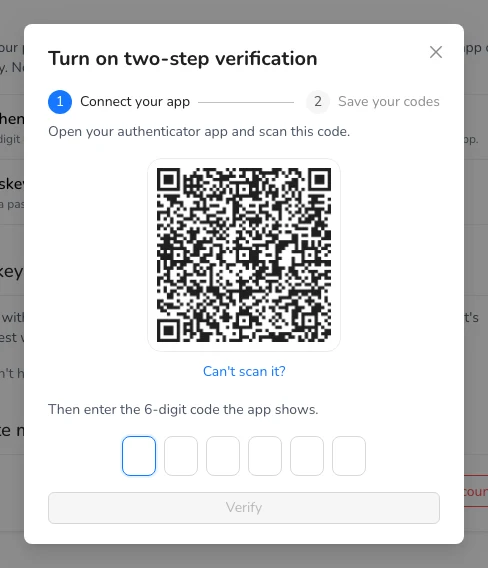
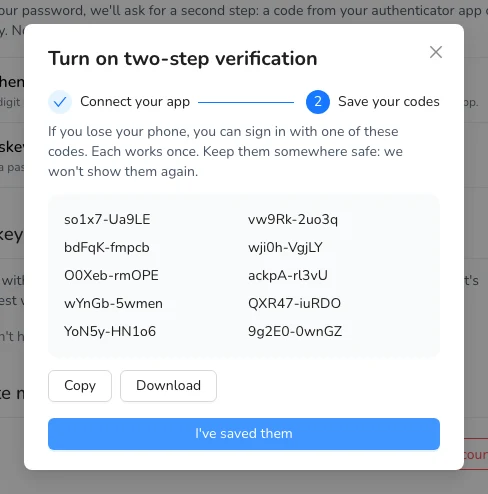
- Save your backup codes: copy or download them and keep them somewhere safe. If you lose your phone, you can sign in with one of them (each works once). Then click I’ve saved them.
Signing in with two-step verification
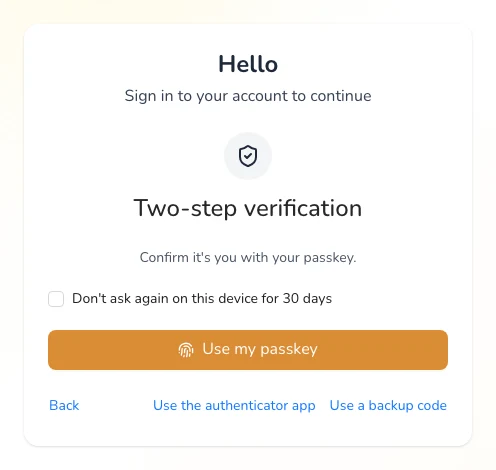
After your email and password, Almendra asks for the 6-digit code from your app. If you tick Don’t ask again on this device for 30 days, it won’t ask on that computer for that time.
Don’t have your phone with you? Click Use a backup code.
Passkeys
A passkey lets you sign in with the fingerprint, face or PIN of your computer or phone, without typing your password.
- In Passkeys, click Add a passkey.
- Confirm with your fingerprint, face or PIN when your device asks.
- Next time, on the sign-in page, click Sign in with a passkey.
Signing in with a passkey doesn’t need the second step: it’s as safe as the password and the code together.
Use your passkey as the second step
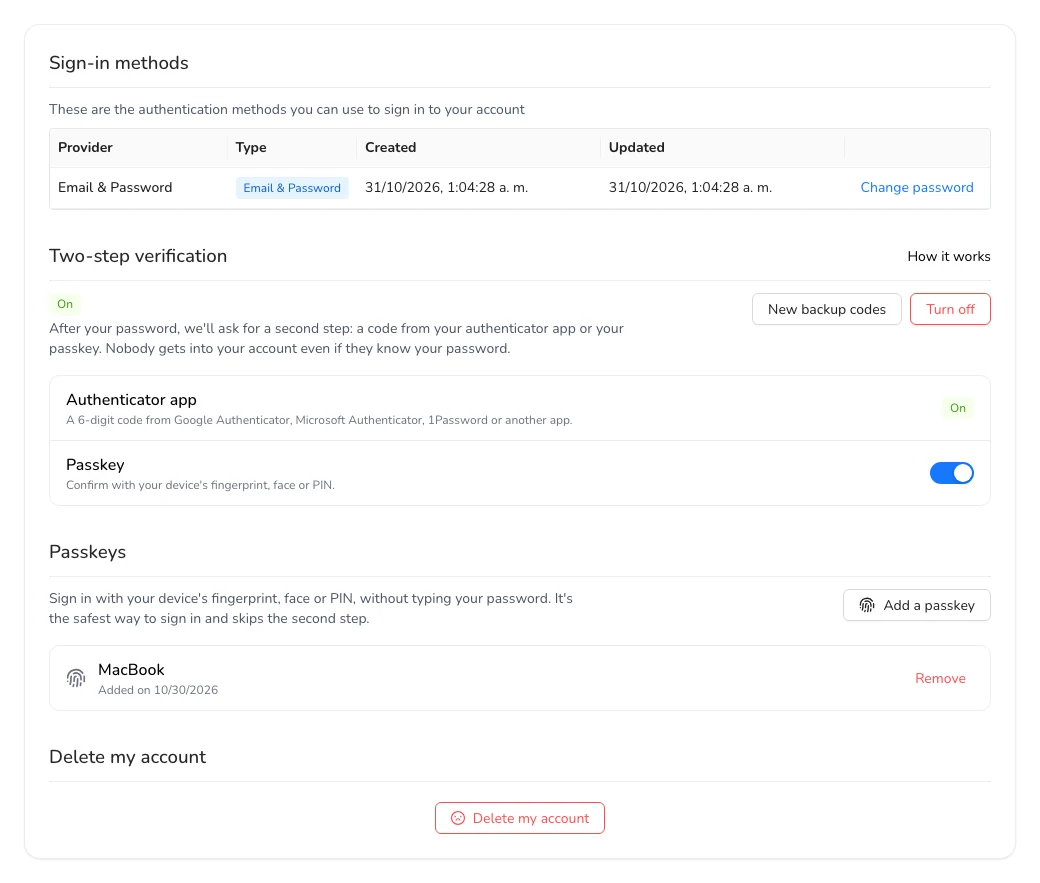
If you’d rather keep signing in with your password, you can use your passkey as the second step instead of the code: turn on the Passkey switch in Two-step verification and enter your password. If you didn’t have the authenticator app yet, you’ll also get your backup codes.
Turning it off
In Two-step verification, click Turn off and enter your password. To get new codes (the old ones stop working), click New backup codes.
If you sign in with Google or Microsoft, two-step verification is handled by that provider, from your Google or Microsoft account.