
How to use Almendra from ChatGPT and Claude
Connect your Almendra account to ChatGPT or Claude and ask your assistant to find patients, build meal plans or reschedule appointments for you.
Updated October 28, 2026
You can connect your Almendra account to ChatGPT or Claude and ask your assistant things like “add milk to every breakfast in Camila’s plan” or “move my 3 pm appointment to the same time on Thursday”. The assistant works directly in your account, with the permissions you give it.
Who can connect it?
The account owner, on a paid plan. If you work in someone else’s account, ask them to connect it.
On the free plan, your account shows up when connecting but can’t be chosen. Click See plans to move to a paid plan, then connect again from your assistant.
If your plan ends, Almendra stays connected but the assistant can’t see or change anything: it tells you and shows a Renew plan button. As soon as you renew, it works again without connecting it again.
What can the assistant do?
- Find your patients by name or email and see their profile.
- See your appointments and reschedule them. The Google Calendar event, the Zoom meeting and the patient’s reminder move too.
- See your patients’ meal plans, create a new one, edit it and send it to the patient. When it opens, creates or edits a plan, you see it as a card in the conversation: each day with its meals, foods and amounts, the day’s calories and macros, and an Open in Almendra button that opens it in your account.
- Search foods and see your recipes to use them in plans. Food search is limited on purpose: it shows the 5 best matches and allows 50 searches a day per account.
- Create recipes with Almendra’s foods or your own. It works out their nutrients from the ingredients, they show up in your Recipes ready to use in plans, and they’re always private: to share one, make it public from Almendra. If you connected your assistant before October 28, 2026, connect it again to give it this permission.
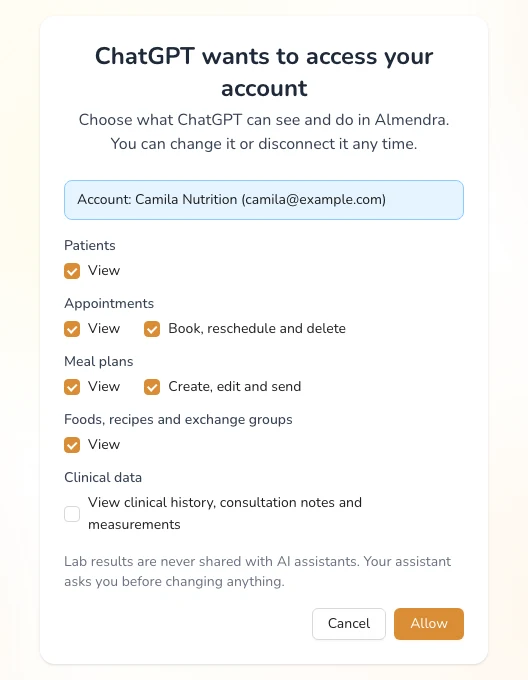
- If you allow it, see clinical data: clinical history, consultation notes and measurements.
Lab results are never shared with AI assistants, even if you allow clinical data.
You’re always in control. Plans the assistant creates are saved as a draft for you to review. Before changing or sending anything, the assistant asks you to confirm, and the patient only gets the plan when you send it.
How do I connect it to ChatGPT?
- In ChatGPT, open Plugins, click Add and choose Add custom MCP server.
- Name it Almendra and enter
https://api.almendra.io/mcpas the address. - Under Authentication, choose OAuth. Don’t use an API key: with OAuth you sign in to Almendra and choose which permissions to give.
- Follow the Almendra steps that open (explained below).
Another option: upload the Almendra plugin. It then shows in ChatGPT with its logo, description and examples of what you can ask.
- Download the Almendra plugin for ChatGPT. There’s no need to unzip it.
- In ChatGPT, open Plugins, click Add and choose Upload plugin archive.
- Upload the file you downloaded and connect Almendra.
- Follow the Almendra steps that open.
Adding your own connections depends on your ChatGPT plan, and on some plans you first need to turn on developer mode in ChatGPT’s settings.
How do I connect it to Claude?
- In Claude, go to Customize → Connectors.
- Click +, then Add custom connector.
- Name it Almendra, enter
https://api.almendra.io/mcpas the address and click Add. - Click Connect and follow the Almendra steps.
It works on every Claude plan (the free plan allows one custom connector). On Team and Enterprise plans, the owner of the Claude organization adds the connector and each person connects it afterwards.
Another option: upload the Almendra plugin to Claude. It then shows with its name and logo.
- Download the Almendra plugin for Claude. There’s no need to unzip it.
- In Claude, open Settings → Plugins and choose Upload a plugin.
- Drop in the file you downloaded, click Upload and connect Almendra.
- Follow the Almendra steps that open.
The steps in Almendra
- Connect Almendra: sign in with your usual account (email, Google or Microsoft).
- Choose your account: choose which account to work with. Only accounts you own that are on a paid plan can be chosen. Below you see the email you’re signed in with; if it’s not the one you want, click Use another email. If you were already signed in to Almendra, you start at this step.
- Permissions: check what the assistant can see and do (patients, appointments, meal plans, foods and recipes, clinical data) and click Allow. The screen shows which account you’re connecting. If you reconnect with the same permissions you already gave, this step is skipped.
Done: go back to your assistant and ask for what you need.
How do I disconnect it?
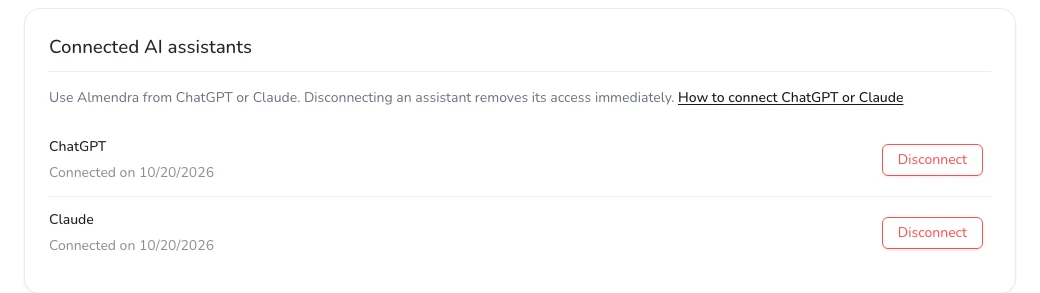
Go to Settings › Developers › ChatGPT and Claude and click Disconnect. Its access ends immediately. To use it again, connect it again from your assistant.
Want to connect another tool, like Zapier or your own system? Use an API key: How to connect Almendra to other tools.
Can’t find what you’re looking for?
Our team replies within 1 business day, Monday to Friday 9:30 AM – 6:00 PM (GMT-5).