
Can I save indications to use them again?
Save reusable indications as templates in the Almendra Templates section, then add them in bulk to any meal plan with the + Templates button.
Updated January 6, 2022
Yes. To do that, you need to create an indications template. An indications template is a set of indications saved under a specific title. It saves you time when a patient comes in who fits those indications, so you don’t have to write them all from scratch.
For example, if you see a patient with obesity, you write indications A, B, and C because of their obesity. If you later see another patient with obesity, you’d have to write indications A, B, and C again. With indications templates, you can skip that process and simply add them all at once.
To create indications templates, do the following:
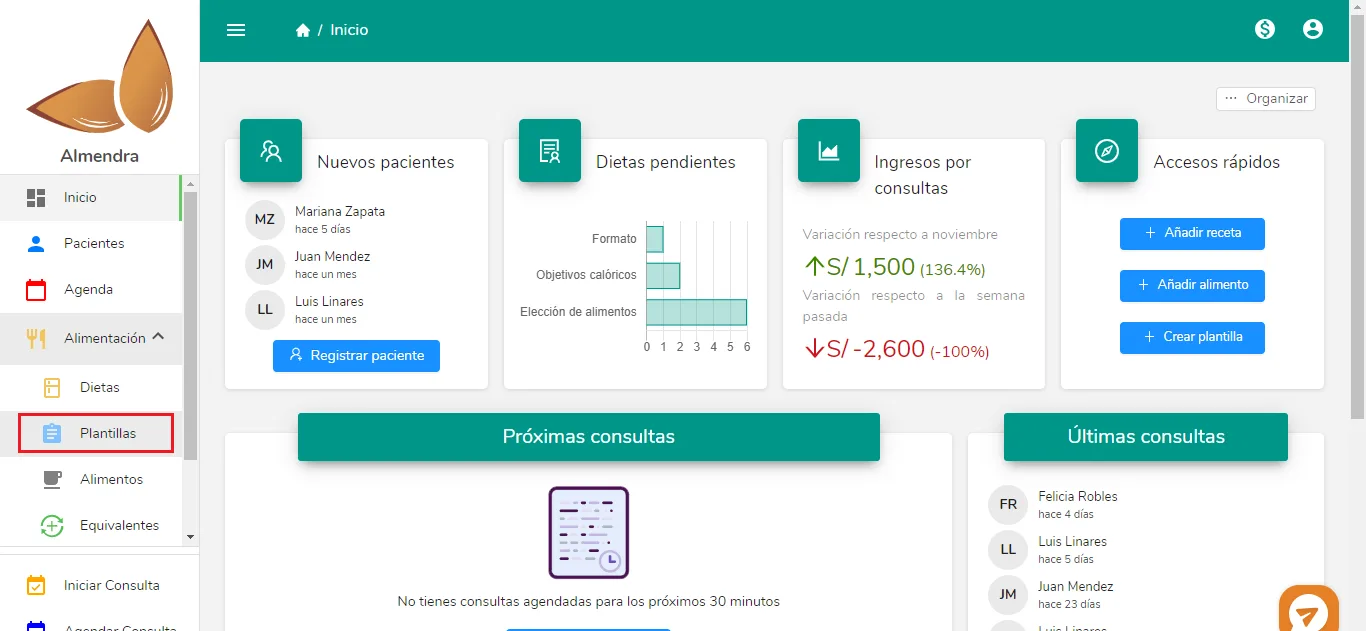
1. Go to the Templates section:
In the sidebar, click Feeding and 4 more options will appear, including Templates. Click Templates.
2. Scroll down until you find the following:
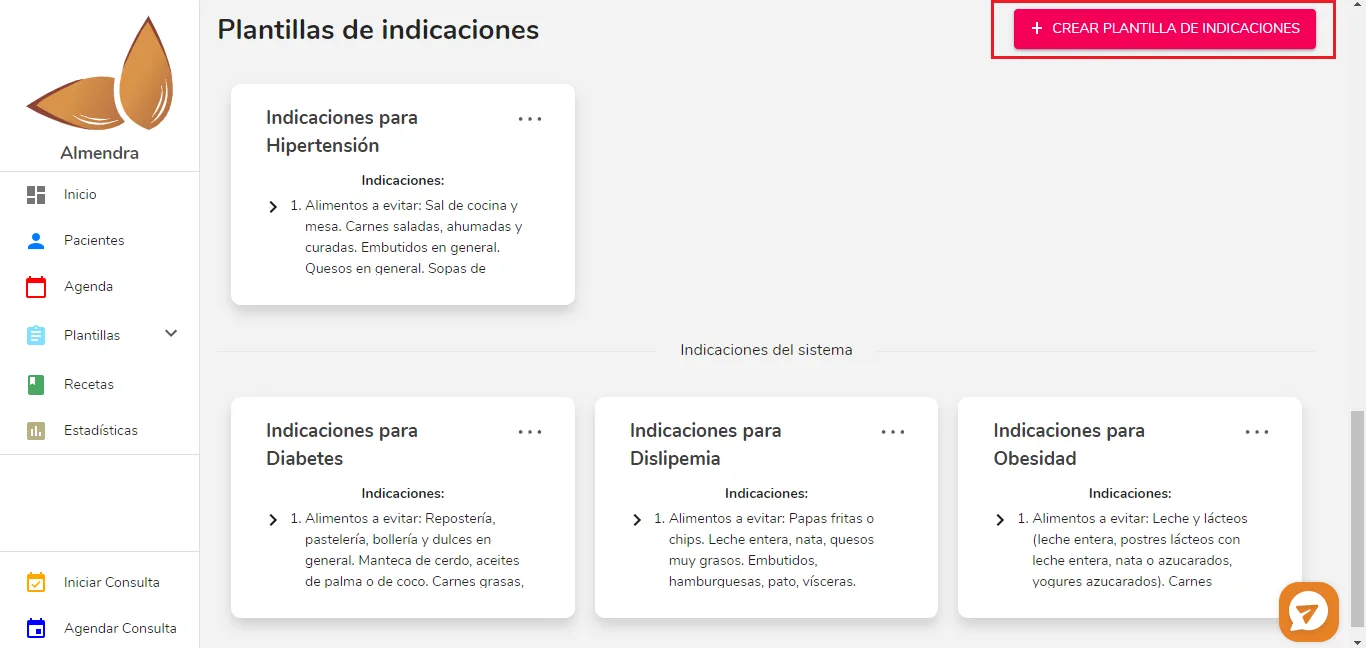
By default, there are already system templates, which you can edit as you like or delete if you don’t need them.
3. Click “Create indications template” in the top right.
The following window will open:
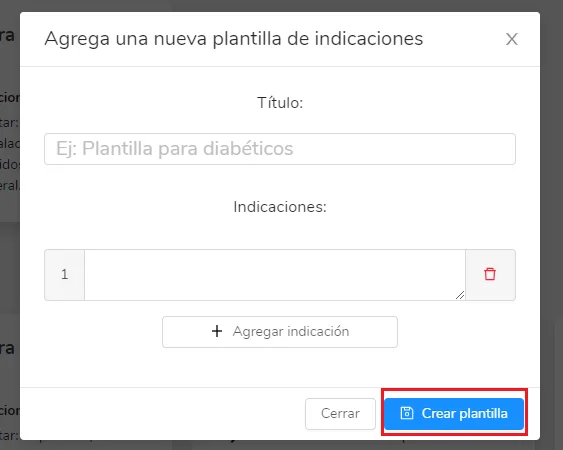
Enter the template title, add the indications you want, and click “Create template”. The indications template will be saved and you’ll be able to use it in meal plans. To use it, in the last step of the meal plan, click “+ Templates” in the “Indications” box, and you’ll find all your indications templates.
Can’t find what you’re looking for?
Our team replies within 1 business day, Monday to Friday 9:30 AM – 6:00 PM (GMT-5).