
How do I move foods from one meal to another?
Move or copy a meal's foods into another meal on several days at once, such as the afternoon snack into lunch, without deleting what the other meal already has.
Updated October 29, 2026
With Move to another meal you take the foods of one meal into another on every day you choose. For example, if your client doesn’t want an afternoon snack, you can move the chocolate and the fruit from Afternoon to Lunch for the whole week in one go.
The foods are added after the ones the destination meal already has: nothing in it is deleted. That’s the difference with Copy meal, which replaces what the destination had.
Where to find it
It works in all three meal plan editors:
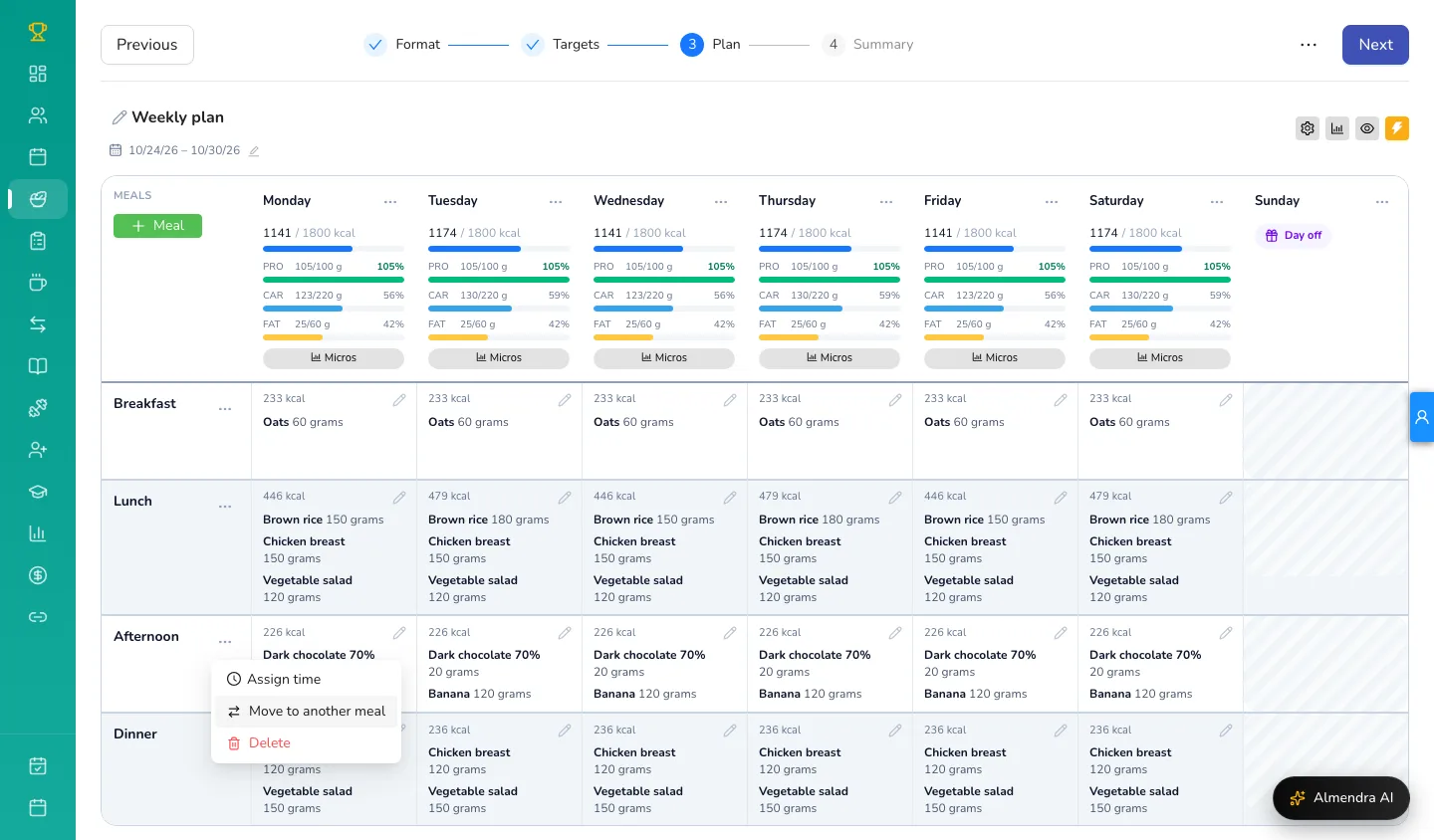
- Table: click the three dots next to the meal’s name (in the first column) and choose Move to another meal. It’s also in the meal window you open with the pencil, next to Copy meal.
- Day by day: in the meal’s three dots, Move to another meal.
- Flexible: on the meal’s two-arrows icon.
Step by step
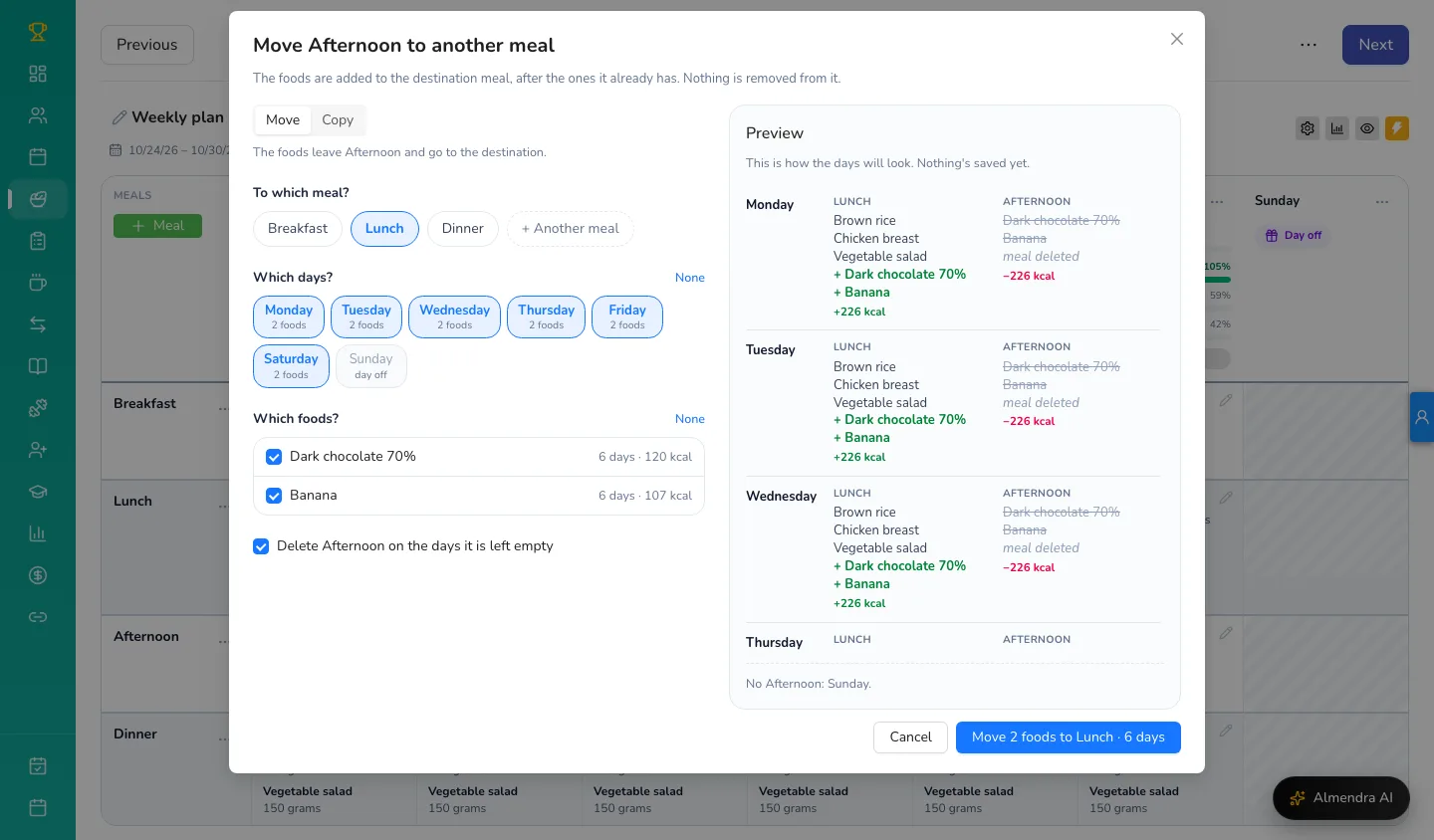
- Choose Move or Copy. With Move, the foods leave the original meal. With Copy, the original meal stays as it is and the destination gets a copy.
- Under To which meal?, choose the destination. If a day doesn’t have it, it’s created. Another meal lets you pick a meal the plan doesn’t have yet.
- Under Which days?, keep the days where you want the change selected. Under each day you see how many foods it has. When it opens, the days where the meal has something are selected. Days where it’s empty can be selected too: they get a copy of another day’s foods (see below). Days off are greyed out. All and None select or clear every day at once.
- Under Which foods?, untick the ones you want to leave where they are. Next to each food you see on how many days it appears and its calories.
- If you’re moving and want the original meal to disappear on the days it’s left empty, tick Delete Afternoon on the days it is left empty (with your meal’s name).
- Check the Preview: for each day it shows which foods go into the destination, which leave the original meal and how many calories each meal gains or loses. Nothing has been saved yet.
- Click the blue button. Its text sums up the change, for example Move 2 foods to Lunch · 6 days.
Take a food from one day to every day
If the meal only has foods on one day (say, a fruit in Tuesday’s Lunch 2) and you want it in Lunch for the whole week, also select the days where the meal is empty, or click All.
Those days get a copy of the foods of the day shown below the days, in Days without Lunch 2 get a copy of…. If the meal has foods on several days, that’s where you choose which one to copy from. The source day only changes if you selected it too: with Move, its foods leave it and go to the destination on that same day.
In the Preview, those days say copied from Tuesday (with the day you chose).
Undo
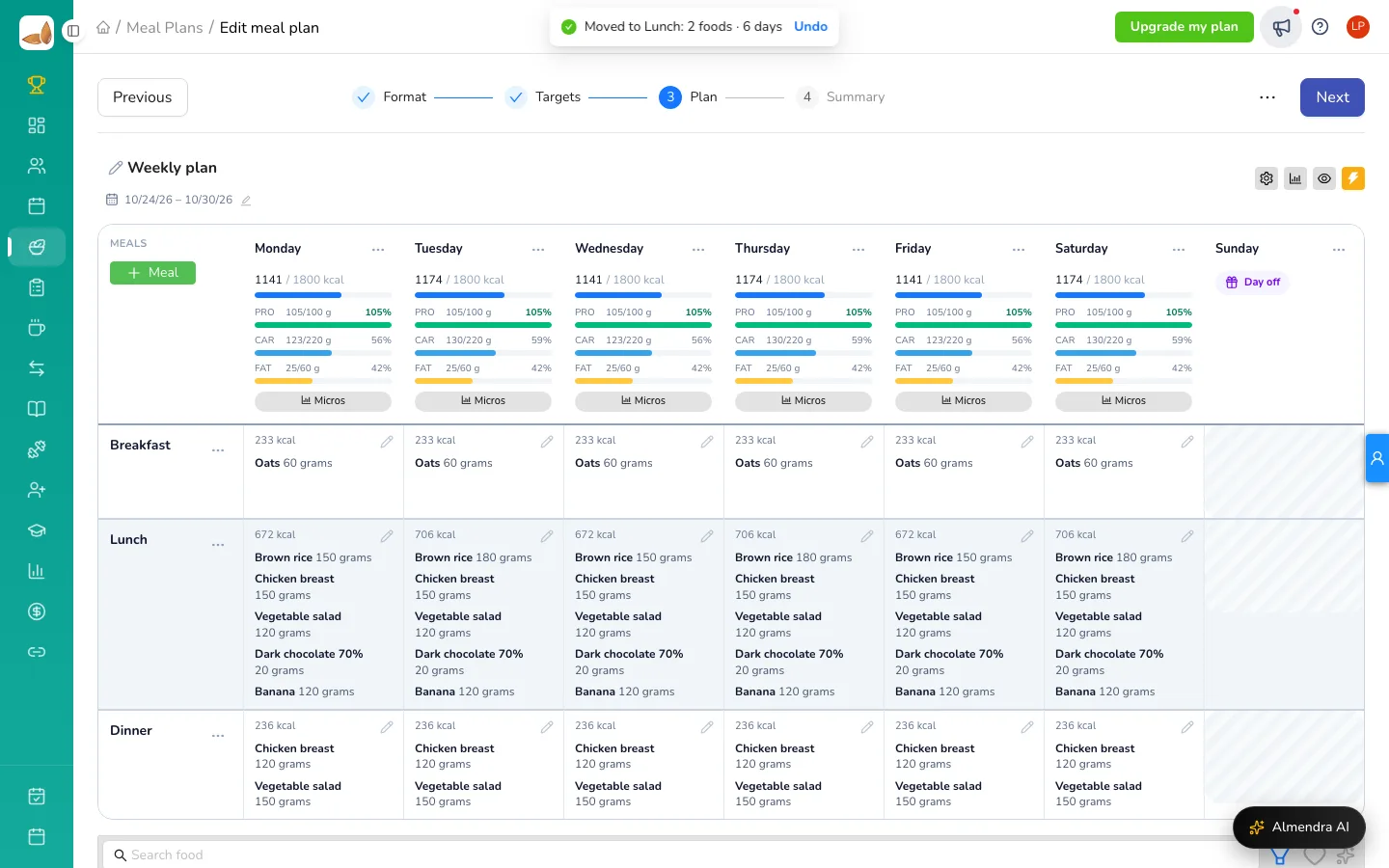
After saving, a notice with an Undo button appears at the top for a few seconds. Click it and the days that changed go back to how they were.
If you edit any of those days before undoing, the notice goes away, so nothing you changed afterwards is lost.
Free-text plans
In a free-text plan the meal’s whole text is moved: it’s added below the text the destination already has. You can’t pick single foods.
More about the editors in How do I use the meal plan editors: table, flexible and day by day?.
Can’t find what you’re looking for?
Our team replies within 1 business day, Monday to Friday 9:30 AM – 6:00 PM (GMT-5).