
How do I create a free-text meal plan?
Create a free-text meal plan in Almendra: type one food per line, place it into meals, and link recipes. Nutrients are not calculated in this plan type.
Updated October 15, 2026
In a free-text meal plan you type foods straight into the meals, without looking them up in a database. To learn more about this format, read What is a free-text meal plan?.
1. Create the plan from the patient’s profile or from the appointment, with Add meal plan.
2. Choose the format. In the Format step, choose From scratch and the Free text format. Under Editor view, choose Table (the whole week at a glance) or Day by day (one day at a time). Then click Create plan.
3. Set the plan’s energy targets and click Next. Even though a free-text plan doesn’t calculate nutrients, each day’s target is shown as a reference.
4. Write the meals. This depends on the view:
Table:
- Below the table, type what you want to place in Foods. Write one food per line: if you type “Half a mango, 1 cup of coffee, Caesar salad” on a single line, it will be placed as a single food. There’s no fixed format; write whatever you need.
- Click Place foods. The meals in the table become selectable: click each meal where you want that text (it gets a check mark), then click Finish. If a meal already had text, you’ll be asked to confirm before it’s replaced.
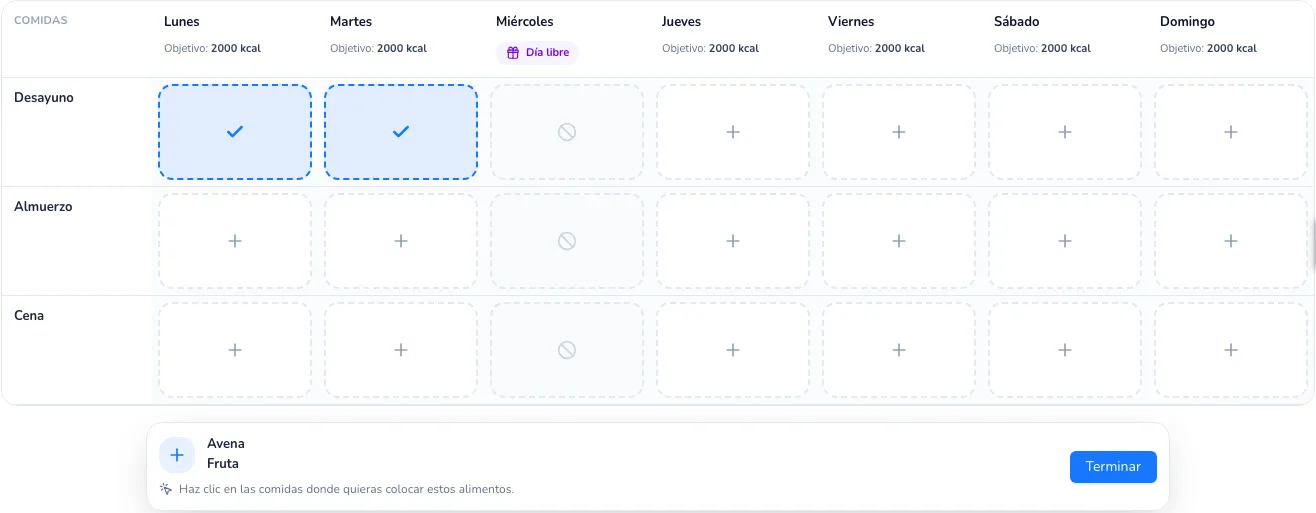
To edit a meal’s text, click it: the meal window opens.
Day by day: each meal has its own text box. Type one food per line; the text is saved when you leave the box.
5. Link recipes (optional). Because foods are typed freely, Almendra can’t tell whether a line is a recipe. If you wrote, for example, “Caesar salad” and you already created that recipe, click the book icon (Add recipes) at the top right, search for it, select it and click Confirm. The patient will see its ingredients and instructions in the PDF and in the app. We go through it step by step in How do I add recipes to a free-text meal plan?.
Remember that a free-text meal plan doesn’t calculate nutrients, because foods are typed freely.
When you’re done, click Next and you can download or send the plan as usual.
Can’t find what you’re looking for?
Our team replies within 1 business day, Monday to Friday 9:30 AM – 6:00 PM (GMT-5).