
How do I fit a template to each patient?
When you use a template, choose the meals your patient eats and their daily energy; Almendra recalculates the amounts and checks their allergies and tastes.
Updated October 19, 2026
A template saves you time, but every patient is different: one eats 3 meals and another 5, one needs 1600 kcal and another 2400, one is allergic to tree nuts and another doesn’t like fish. With Fit when choosing a template, Almendra fits the template to the person before the plan is created, and you review every change.
This guide follows one example: the template Mediterranean 5 meals (about 1423 kcal a day) for Camila, who eats 3 meals, is allergic to tree nuts, doesn’t like salmon, whose favorites are chicken and oats, and whose previous plan had 1600 kcal.
Before you start
- You need at least one saved template (in Templates, or with Save as template when you finish a plan).
- The more complete the patient’s record (meals per day, allergies, dislikes and favorites), the better it works. You can fill it in on the spot, in step 5.
- It works with day-by-day menu and flexible options plans; for exchange and free-text plans it does part of it (explained at the end).
1. Turn the option on
- Open or create a meal plan for your patient.
- In How would you like to start?, choose Use a template.
- Turn on Fit when choosing a template.
- Pick the template from the list.
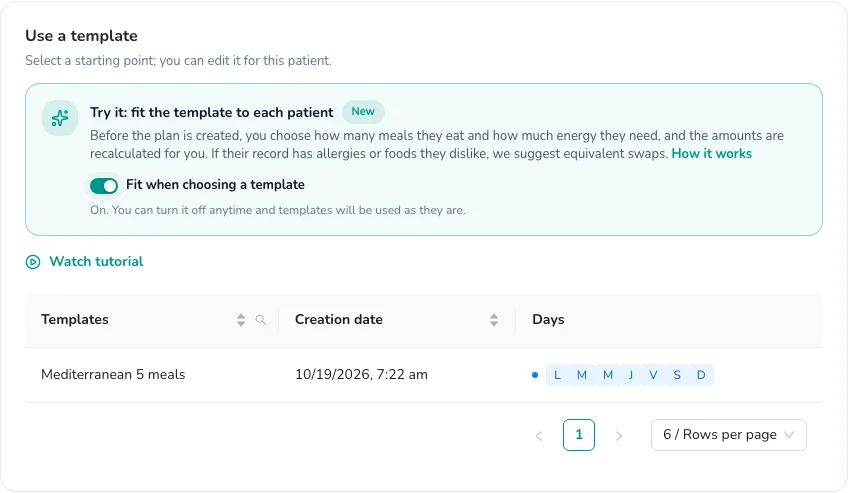
Almendra remembers your choice next time in this browser. If you turn it off, templates are used as they are, as always (with the same confirmation as before). You can turn it on and off anytime.
Picking the template opens Fit the template to Camila. Nothing is saved to the plan until you click Create the plan: you can try options freely, or go back with Choose another template.
2. Choose the meals they eat
Meals per day shows the template’s meals with their time and approximate energy. The ones with a ✓ are the ones the plan will have.
- If the patient’s record says how many meals they eat, they come already selected and you see Matches their record. Almendra picks the main meals first (breakfast, lunch and dinner), then the biggest.
- To change it, click a meal to tick or untick it, or use How many meals? to pick the number.
- If you change the number and want to remember it, click Save N meals to their record.
In the example, Camila eats 3 meals, so Breakfast, Lunch and Dinner stay, and Mid-morning and Afternoon go.
What happens to the meals you remove
Each meal you remove gets a row with two options:
- Remove and spread its energy: the meal goes and its energy is spread over the others (portions grow a little).
- Move its foods to…: its foods are added to another meal. For example, the mid-morning yogurt and walnuts move to breakfast.
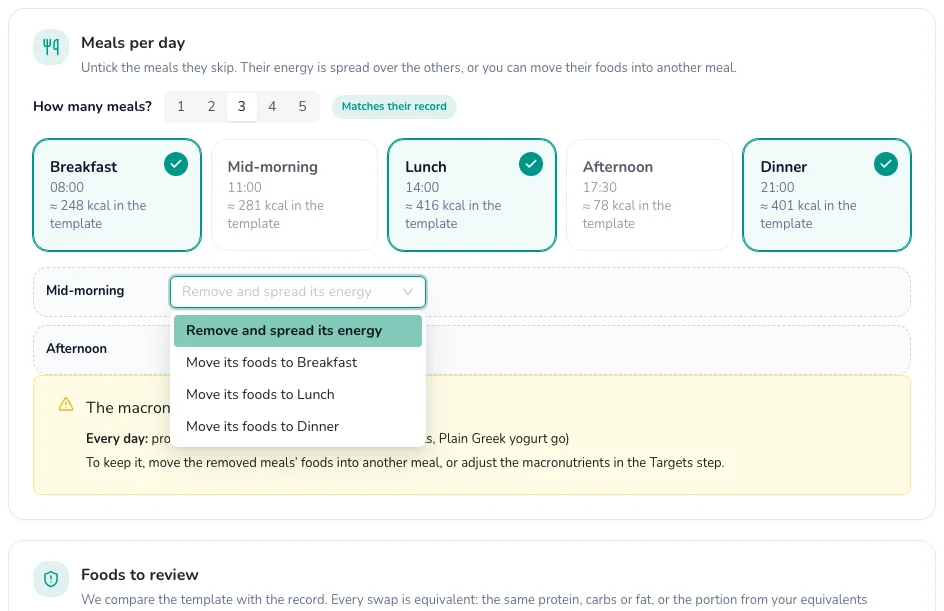
Which one? Spreading the energy keeps the plan simple. Moving the foods keeps the template’s macronutrient split better, especially when the removed meal brought something important (for example, the fat in nuts or the calcium in yogurt).
The macronutrient warning
If removing meals changes the protein, carbs and fat split a lot (5 points or more), you’ll see The macronutrient split changes, with each day’s change and the foods that go:
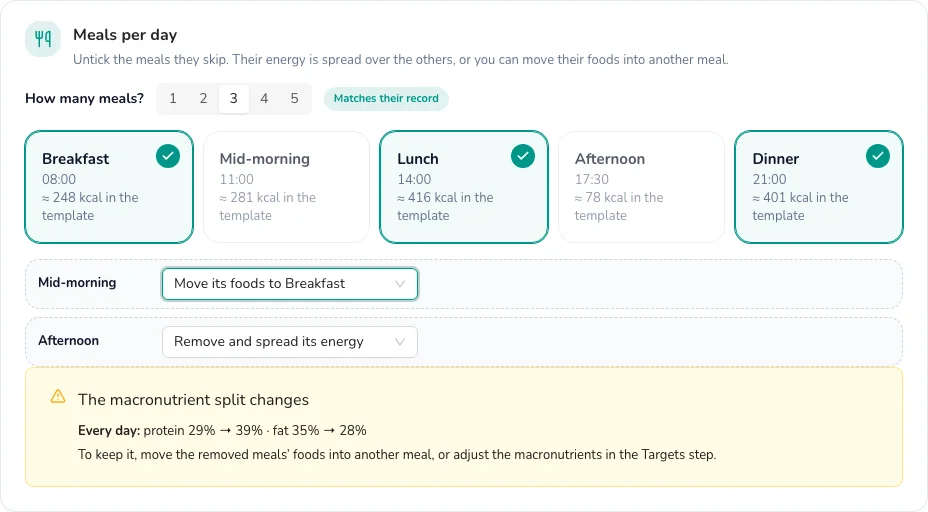
It isn’t an error: it’s there so you decide. You can move the removed meal’s foods into another meal, or leave it and adjust the macronutrients later in the Targets step. When every day changes the same way, it’s shown in one line (Every day).
In flexible options plans each meal is a list of options, so foods can’t be moved from one meal to another: only their energy can be spread.
3. Choose the daily energy
In Daily energy you decide how much energy each day has:
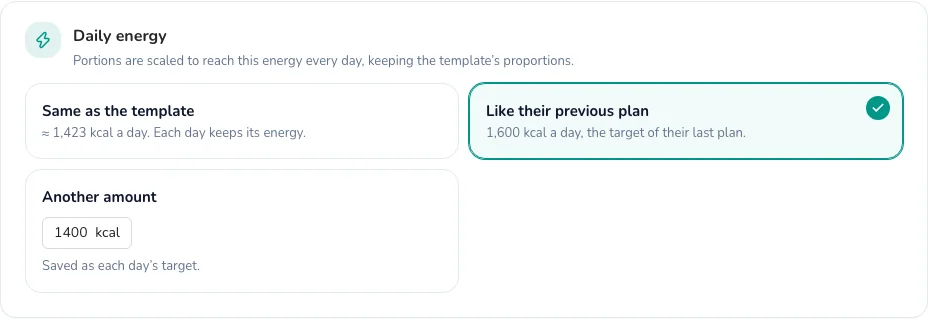
- Same as the template: each day keeps the energy it had in the template, even if you remove meals.
- Like their previous plan: the energy target of their last finished plan (shown if they have one).
- Calculated requirement: their energy expenditure from their latest measurements (Mifflin-St Jeor), as in the Targets step (shown if weight, height, age and activity are known).
- Another amount: type any number.
When you pick an amount, it’s saved as each day’s energy target in the plan, with the macronutrients in the same proportion.
How the amounts are adjusted
Almendra multiplies every amount of the day by the same number, so the day reaches the chosen energy without changing the proportions between foods. In the example (from about 1423 to 1600 kcal, with 3 meals instead of 5), portions grow by about 25%.
Then it rounds to amounts that are easy to measure:
| Unit | Rounding | Example |
|---|---|---|
| Grams | to 5 g (to 1 g under 20 g) | 187 g → 185 g |
| Household measures (cup, unit, tablespoon…) | to ¼ (to ½ from 2 up) | 1.3 units → 1 ¼ |
| Exchanges | to ½ | 2.4 → 2 ½ |
So that rounding doesn’t take the day away from the chosen energy, the biggest foods weighed in grams (never oil) absorb the difference, moving at most 25%. The result usually lands within 1% of the target.
If portions grow more than 60% or shrink more than 40% compared with the template, you’ll see a warning: it may be better to move a removed meal’s foods or pick another template.
4. Review the foods against their record
If your patient has allergies, intolerances, dislikes or favorites on their record, Foods to review lists each food of the chosen meals that clashes with it:
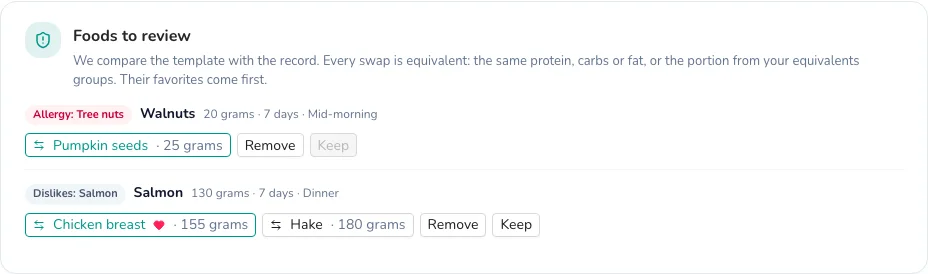
For each food you see why it’s there (Allergy: Tree nuts, Dislikes: Salmon), how much there is, on how many days and in which meals, and up to three equivalent swaps. Choose one of them, Remove or Keep:
- Allergies and intolerances: the first swap comes selected (or Remove if there’s none) and they can’t be kept.
- Dislikes: the first swap comes selected, but you can Keep the food.
- Favorites come first among the swaps and carry a ♥.
In the example, the Walnuts that reach breakfast from mid-morning are swapped for Pumpkin seeds (25 g, the portion from their equivalents group), and dinner’s Salmon for Chicken breast, her favorite.
How Almendra picks these swaps, what counts as each allergy, and what happens in exchange or free-text plans: How does Almendra check my patient’s allergies and tastes?.
5. Review or complete their record
On the right you see Camila’s record: meals per day, allergies, intolerances, dislikes and favorites.
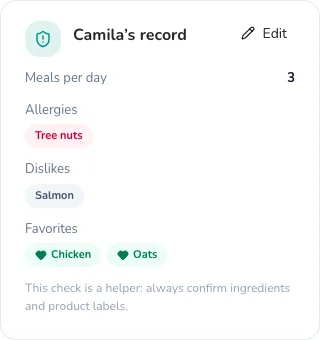
Edit changes it without leaving the screen. What you save stays on their record for future plans, and the review updates right away.
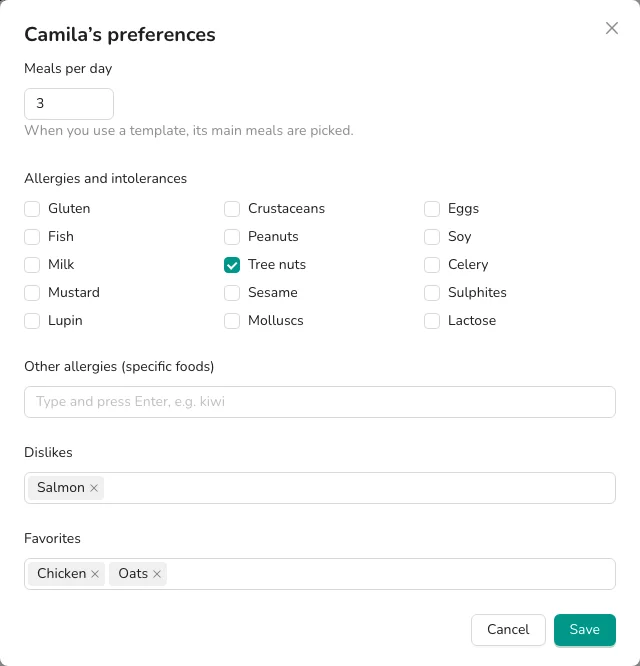
- Meals per day: how many meals they usually eat.
- Allergies and intolerances: tick the ones they have. These are the 14 allergens that must be declared on labels (gluten, crustaceans, eggs, fish, peanuts, soy, milk, tree nuts, celery, mustard, sesame, sulphites, lupin and molluscs) plus lactose.
- Other allergies (specific foods): foods that aren’t on the list, for example kiwi. Type and press Enter.
- Dislikes and Favorites: foods or groups, for example broccoli, oily fish or vegetables.
If their record already had allergies typed as a group (for example “tree nuts” or “dairy”), the matching box comes ticked and the text is kept.
6. See how it will look and create the plan
How the plan will look shows each day (pick the day at the top) with:
- the day’s energy and macronutrients, and how far they are from the target;
- in amber, macronutrients that move 5 points or more from the template;
- each food with the template’s amount struck through and the new one next to it;
- the tags swapped (with the original food struck through), from Mid-morning (when it came from another meal) and removed, and a ♥ on favorites.
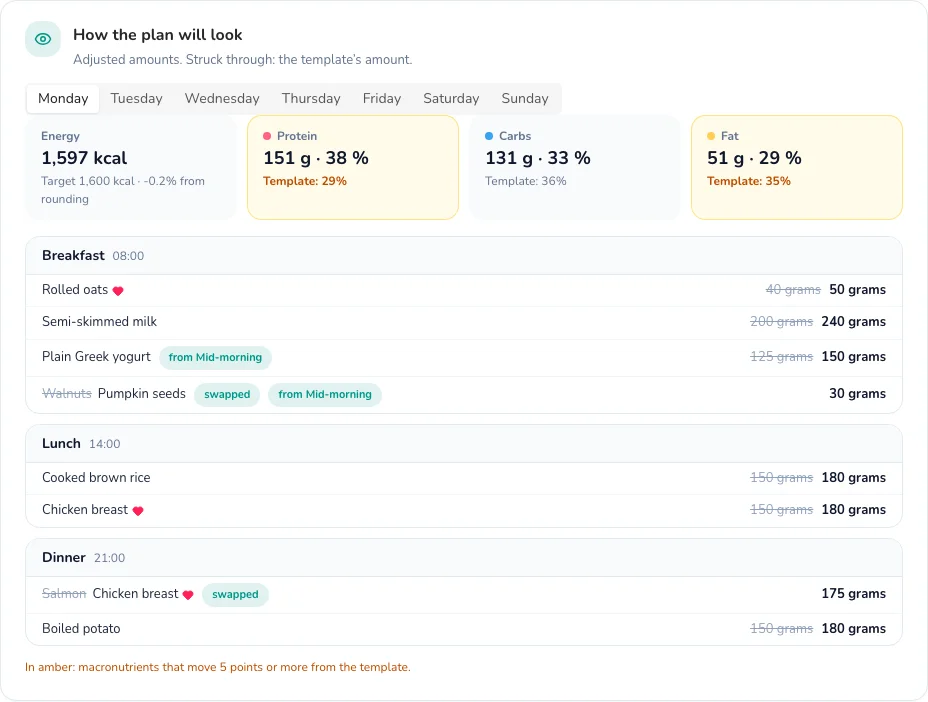
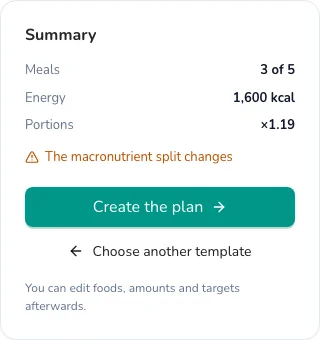
Summary shows the meals, the energy and how much portions change. When it’s ready, click Create the plan.
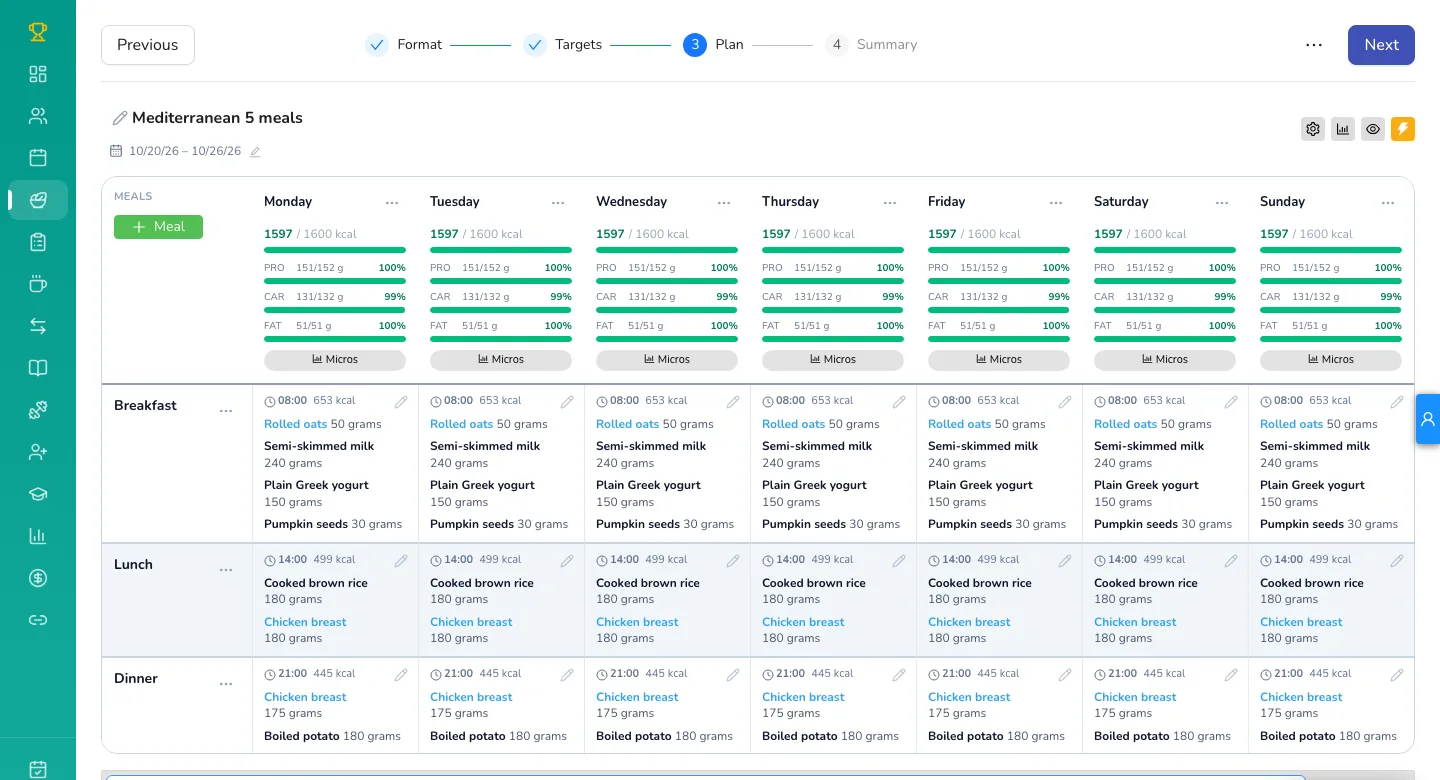
The plan opens in the Plan step, with the meals, amounts and each day’s targets already in place. From there you edit it like any other plan: change foods, amounts or targets, add recipes, and so on.
Frequently asked questions
Does my template change? No. The template stays the same; the changes only apply to this patient’s plan.
Can I use the template as it is just once? Yes. If you don’t change anything, the button says Use the template as it is. You can also turn off Fit when choosing a template.
Does it work on my phone? For now, fitting templates is on the desktop version. On the phone, templates are used as they are.
Can I undo it after creating the plan? The plan is created like any other: you can edit it, or go back to the Format step with Previous and start again.
Can’t find what you’re looking for?
Our team replies within 1 business day, Monday to Friday 9:30 AM – 6:00 PM (GMT-5).