
How do I use the meal plan editors: table, flexible and day by day?
A guide to Almendra's meal plan editors (table, flexible and day by day): add meals and foods, copy and clear days, and track progress toward targets.
Updated October 24, 2026
In the Plan step of a meal plan you build the patient’s menu. Almendra has three editors, and the one you see depends on the format you chose in the Format step:
- Daily menu and Free text: the Table or Day by day editor, whichever you prefer.
- Flexible options: the flexible editor, by model days.
The Exchanges format has its own editor and isn’t covered here.
What the three editors have in common
- Name and dates. At the top left you can rename the plan. The dates are just below it; the pencil opens Meal plan dates, where you can move the plan or change its length.
- Targets. Energy and macronutrient targets come from the Targets step. Every editor shows how each day is doing against its target. To change the targets, click Previous.
- Autosave. There’s no save button: every change is saved on its own. While a change is being saved, you’ll see Saving changes next to Next. If your connection drops, Almendra keeps retrying and stores a copy on your device; the next time you open the plan, it offers to recover it. If the plan was changed in another tab or on another device, it asks which version to keep.
- Move to another meal. Moves or copies a meal’s foods into another meal on several days at once, without deleting what that meal already has. See How do I move foods from one meal to another?.
- Next takes you to the Summary step, where you choose what the patient will see, download or email the PDF, and publish the plan with Finish.
How to switch editors
For the Daily menu and Free text formats, you pick the view in the Format step, under Editor view: Table or Day by day.
If you’re already in the editor, click the gear (Plan settings) at the top right. Under Visibility, choose Table or By day and click Confirm. In the same window, Foods placing lets you switch from the Search bar to Free-text.
The Flexible options format always uses the flexible editor: it has no table view.
Table editor
Shows the whole week: one column per day and one row per meal. It’s the fastest view for repeating foods across several days.
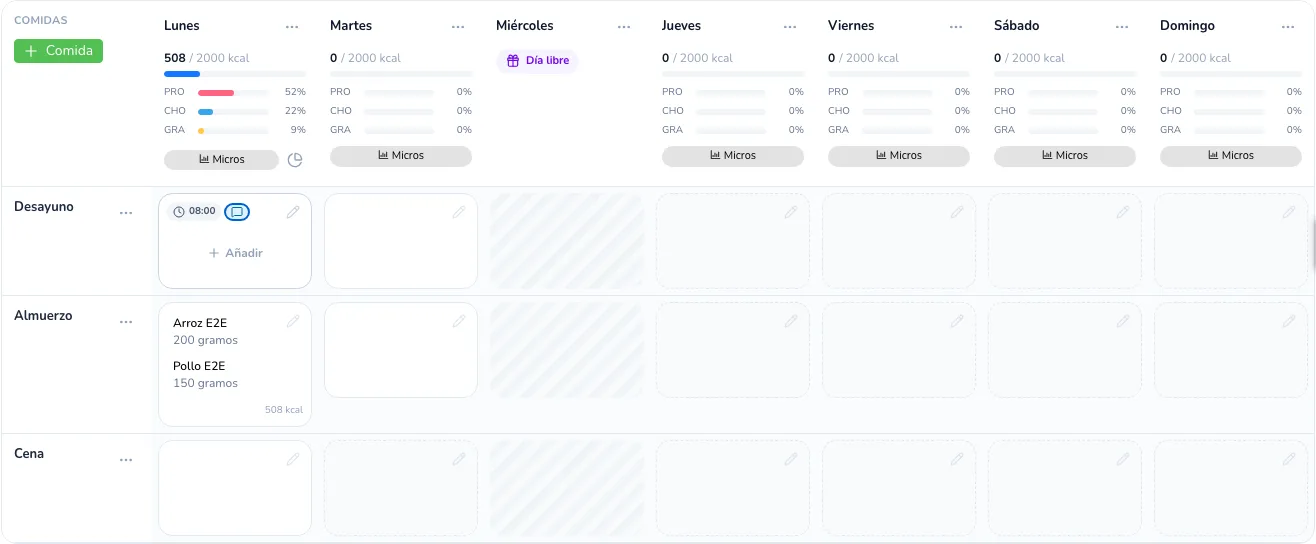
Targets and progress. Each day’s header shows the current energy against the target (for example, 508 / 2000 kcal), a progress bar, and the percentage covered of protein (PRO), carbs (CAR) and fat (FAT). The bar turns green when the day is within target and amber when it goes over. Micros opens the day’s micronutrients. If the day has meal-time targets, the pie chart icon shows how much of its target each meal covers.
Meals. + Meal (top left) adds a meal to every day. The three dots next to a meal’s name let you Assign time to several days at once or Delete that meal from every day.
Adding foods.
- Look up the food or recipe in Search food, below the table, and choose the quantity and unit.
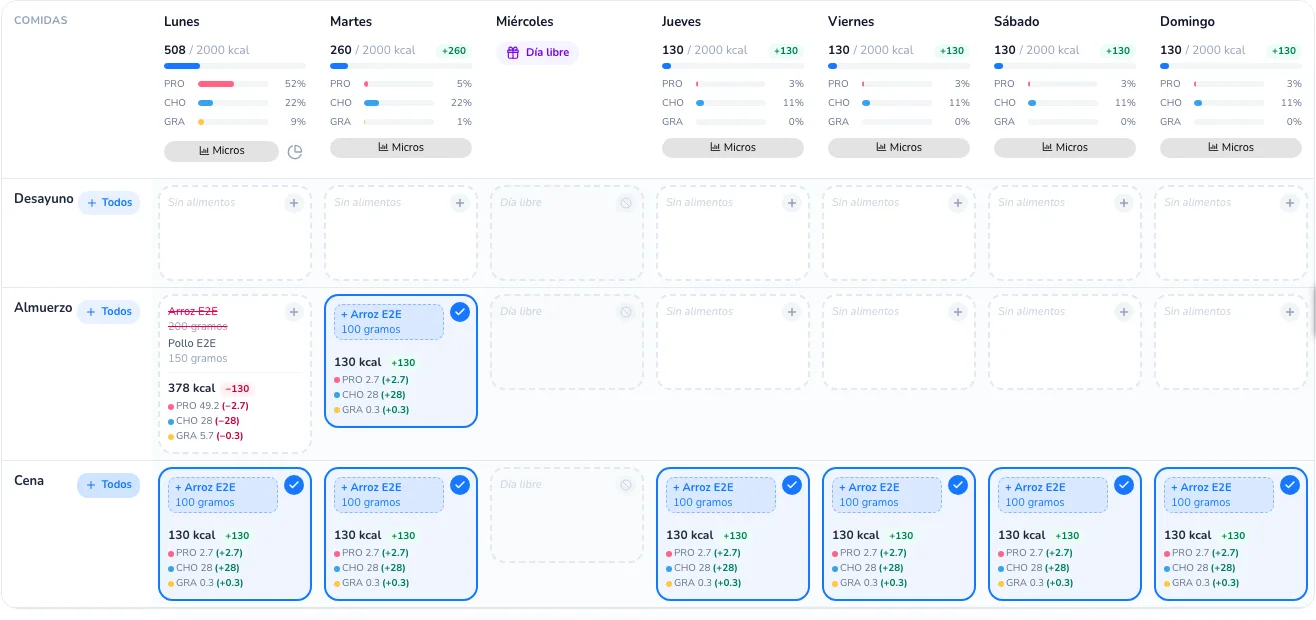
- Click the meals where you want to place it. + All, next to a meal’s name, adds it to that meal on every day. Clicking a meal that already has it removes it.
- While you choose, each day previews how its calories and macros will change, and the bottom bar counts your changes. Click Finish to apply them or Cancel to discard them. For a recipe, Edit recipe and finish lets you adjust it first.
Editing a food. Click a food in the table to Choose equivalence, use a Random equivalence, see its Details or Delete it. You can also drag it to another meal or day to move it.
Editing a meal. Hover over a meal and click the pencil (or Add if it’s empty). The meal window opens: there you change quantities, add a Time and a Comment, check the Analysis, and Move meal, Copy meal or Delete meal. When copying a meal, click Copy here on each target meal and then Finish.
Day actions. The three dots next to each day’s name hold Copy (to other days), Copy with equivalences (copies the day swapping each food for an equivalent), Clear (empties the day) and Set as day off (or Unset day off).

Free text in the table. A free-text plan has no search bar: below the table, type in Foods (one food per line), click Place foods, pick the meals and click Finish. More details in How do I create a free-text meal plan?.
Day-by-day editor
Shows one day at a time, with more detail for each meal. It’s handy when every day is different or when you want to review each meal’s analysis.
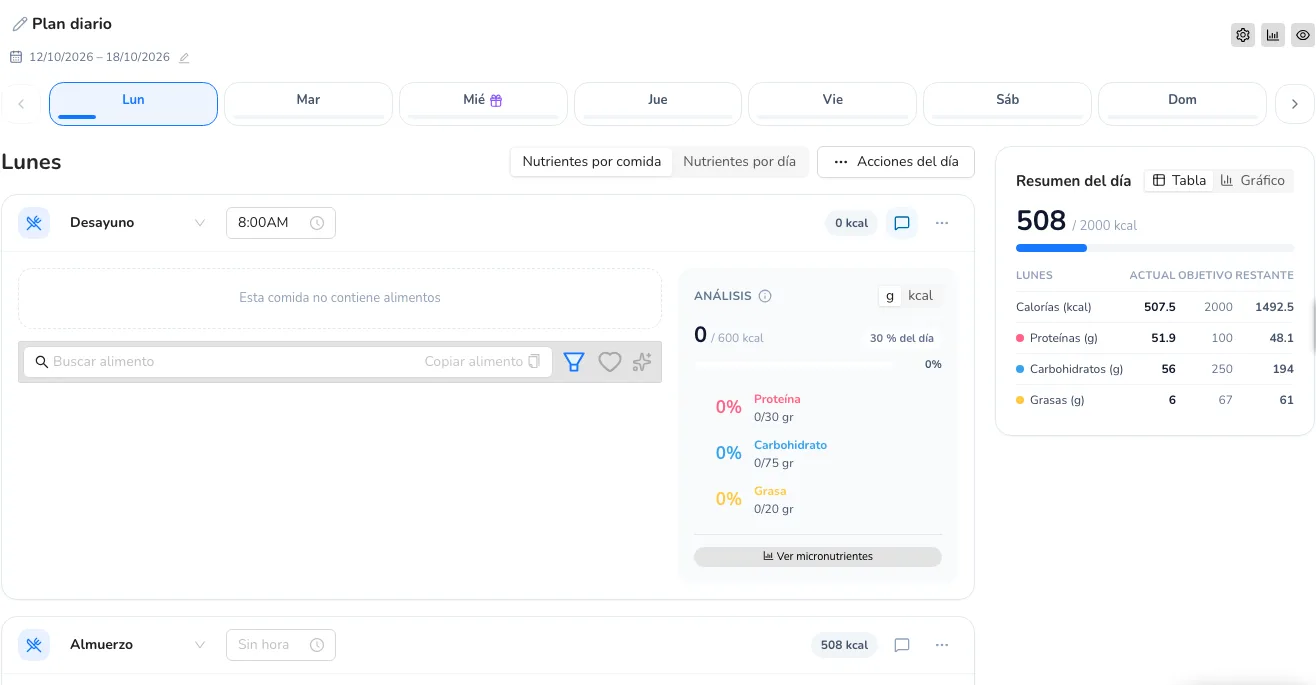
Moving between days. At the top there’s a tab per day, with a progress bar toward its target. Days off have a gift icon. The arrows take you to the previous or next day.
Targets and progress. On the right, the Day summary shows the Current, Target and Remaining calories and macros, as a Table or Chart. With Nutrients per meal, each meal shows its Analysis (how much of the day it covers and its macros against the meal’s target); with Nutrients per day you see the nutrients of the whole day.
Meals. Add meal, at the end of the day, adds a meal to that day. In each meal you can change the name, set the time, add a comment (the speech bubble icon) and, from the three dots, Move up, Move down or Delete meal.
Foods. Each meal has its own search bar: look up the food and add it. In the list you can change the quantity, unit and name, drag to reorder, swap for an equivalent or delete. Copy food, in the search bar, brings in foods from another meal on the same day.
Copying a meal. Click Copy meal at the end of the day, pick the meal to duplicate with its +, and choose the name of the copy. When you’re done, click Stop copying.
Day actions. The Day actions button holds Copy to all days, Copy from day (brings in another day’s content) and Clear day.

In a free-text plan, each meal has a text box where you type one food per line.
Flexible editor
In a Flexible options plan you don’t build a menu for each date, but model days (for example, “Training day” and “Rest day”). Each meal has groups of interchangeable foods: the patient picks one option from each group.
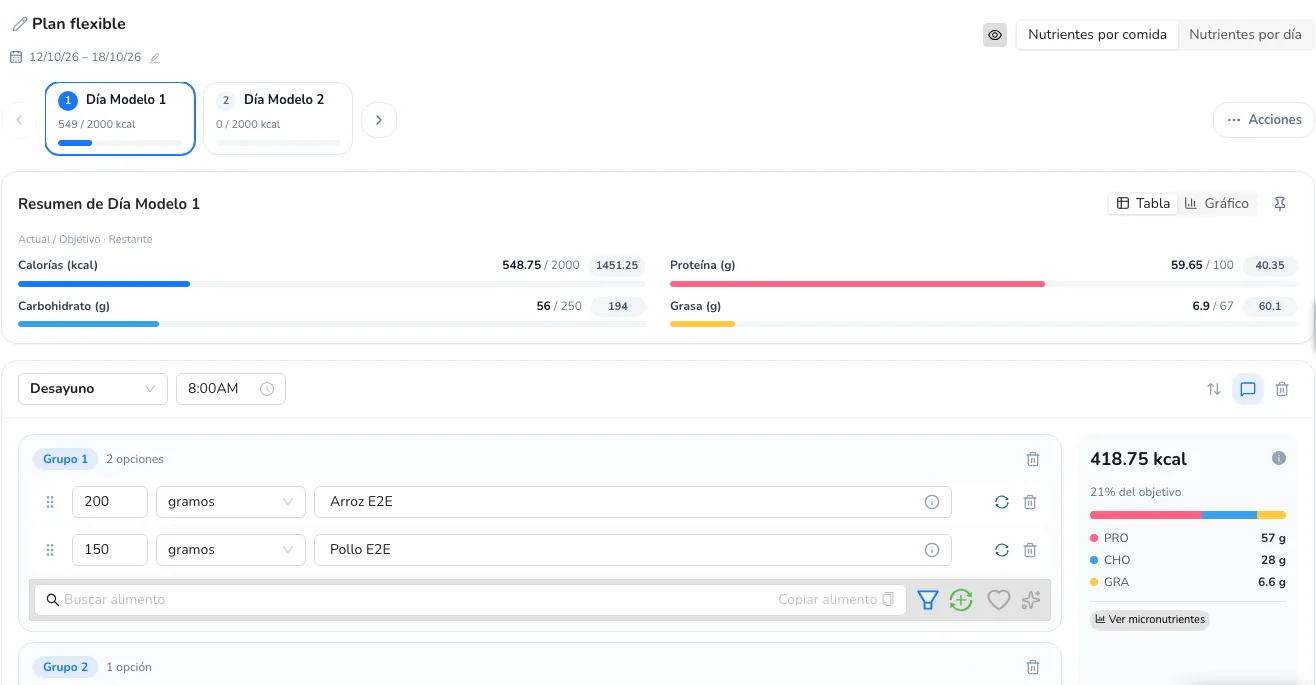
Moving between model days. At the top there’s a tab per model day with its energy against the target. When the day is within target, its number turns into a green check.
Targets and progress. The model day’s summary shows the Current, Target and Remaining values, as a Table or Chart. With the pin you can Pin the summary so it follows you as you scroll, and in Chart you can View weekly summary. Since each group has several options, the calories and macros you see are the average of the options. With Nutrients per meal, each meal shows its energy and the share of the target it covers.
Meals. Add meal, at the bottom, adds a meal to the model day. In each meal you can change the name and time, Move position, leave a Comment or Delete meal.
Groups and options.
- + Group adds a new group to the meal.
- Use the group’s search bar to add options. You can edit each option’s quantity, unit and name, drag to reorder them, swap them for an equivalent or delete them.
- The green + button next to the search bar (Add equivalents group) fills the group with foods from your equivalents.
- Copy food lets you bring in options from another group on the same day: click Copy next to a food and choose All the group or Just this food.
Copying a meal. Click Copy meal at the end of the day, then the + on the meal you want to copy (Copy this meal), and choose the name of the copy.
Actions. The Actions button holds Clear day, Copy to every day and Copy from day.
Flexible plans don’t have days off.
Days off
In the Daily menu and Free text formats you can leave days without meals. We explain how in How do I make a meal plan day a day off?.
Can’t find what you’re looking for?
Our team replies within 1 business day, Monday to Friday 9:30 AM – 6:00 PM (GMT-5).