
How do I design my PDF cover?
Choose the style, colour, typeface, background and details on the first page of your meal plan PDFs in Settings → PDF covers.
Updated October 29, 2026
The cover is the first page of the PDF your patient receives. You can design it with your logo, your colours and the details you want to show. For now it’s used on meal plans.
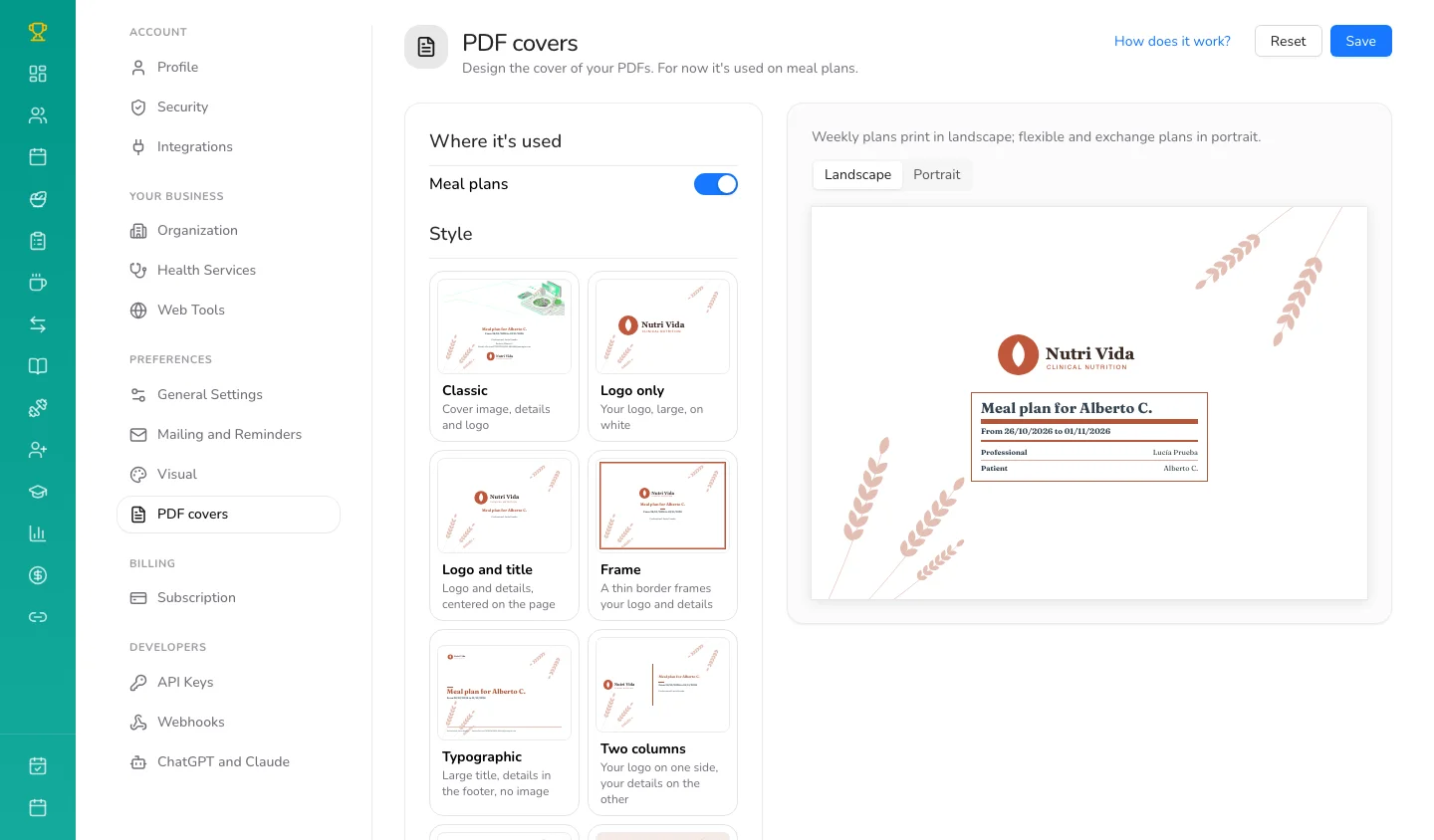
Where to find it
Go to Settings → PDF covers. On the right, a preview changes with every setting. When you like it, click Save: your next PDFs use the new cover.
What you can choose
- Where it’s used: the Meal plans switch decides whether the PDF has a cover. Turn it off and the PDF starts straight on the plan.
- Style: there are 14, from Classic (with a cover image) to light-ink options like Logo and title, Frame, Label or Book. All of them are designed to print without using much ink.
- Colour: pick Your logo colour so it matches on its own, or choose another.
- Typeface: Modern, Editorial or Clean.
- Background: a soft drawing in the corners (Dots, Waves, Botanical, Wheat and more) or None.
- Logo: adjust the Logo size and the Alignment. If your logo comes with a lot of white space around it, turn on Remove the logo’s white margin.
- What the cover shows: tick or untick the logo, the plan name and dates, your name, your patient’s name, your email and your phone.
With Landscape and Portrait you see how it looks in each format: weekly plans print in landscape; flexible and exchange plans, in portrait.
The cover image
The Classic and Round photo styles use a Cover image. Upload or change it right there, under the Cover image checkbox. Classic works best with a wide image (2300 × 700); Round photo, with a photo of you. This image used to be in General Settings; now it sits next to the cover.
If you already used Almendra
Your PDFs keep the cover they always had until you save a new one. To start over, use Reset.
Can’t find what you’re looking for?
Our team replies within 1 business day, Monday to Friday 9:30 AM – 6:00 PM (GMT-5).