
How do I add recipes to a free-text meal plan?
Link recipes to a free-text meal plan in Almendra with Add recipes so your patient can see their ingredients and preparation in the PDF and the app.
Updated October 15, 2026
To understand what a free-text meal plan is, read What is a free-text meal plan?.
In a plan with a food search, recipes are added on their own when you pick them. In a free-text plan, though, you type the meals by hand, so Almendra can’t tell which lines are recipes. That’s why you link them in a separate step.
Say you want the patient to see the ingredients and preparation of “Caesar salad” in their plan (PDF and app).
1. Write the recipe in the meal. In the table editor, type it in the Foods field below the table, click Place foods, pick the meals and click Finish. In the day-by-day editor, type it directly in the meal’s text box.
Note: you can write “1 serving of Caesar salad” or “Caesar salad with little lettuce”. It’s free; just remember to write one food per line.
2. Link the recipe. At the top right of the editor, click the book icon (Add recipes). This window opens:
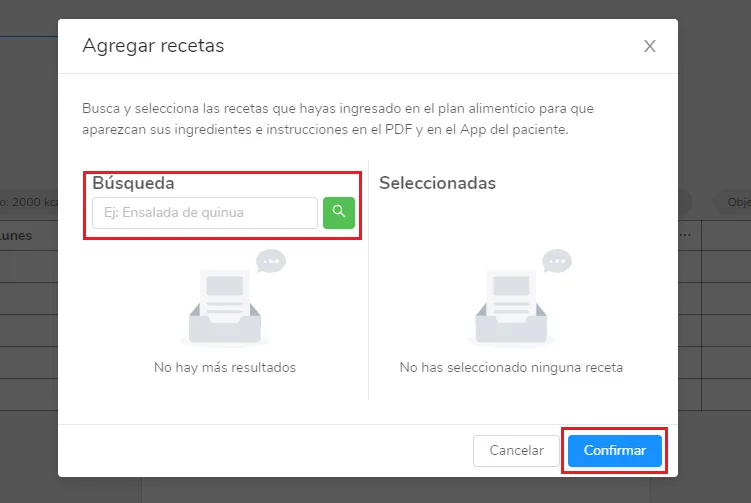
Type “Caesar salad” and press Enter or click the magnifying glass. The results appear:
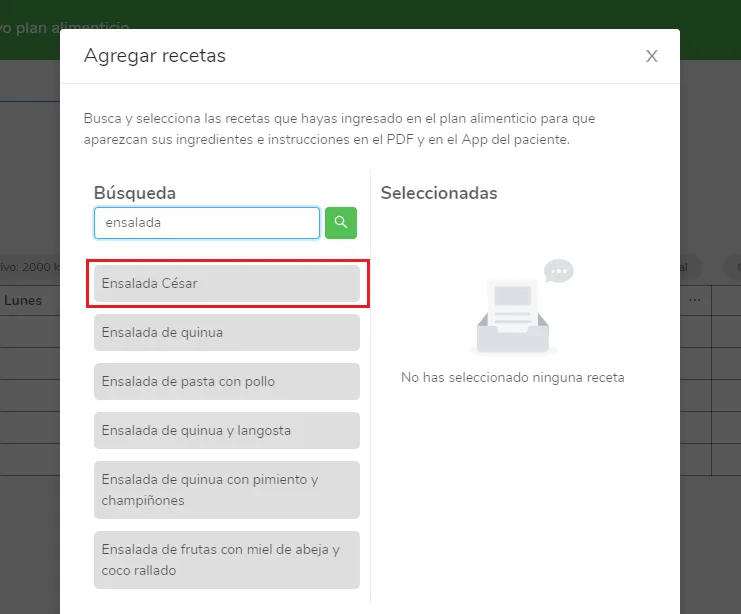
Click Caesar salad and it moves to the Selected column:
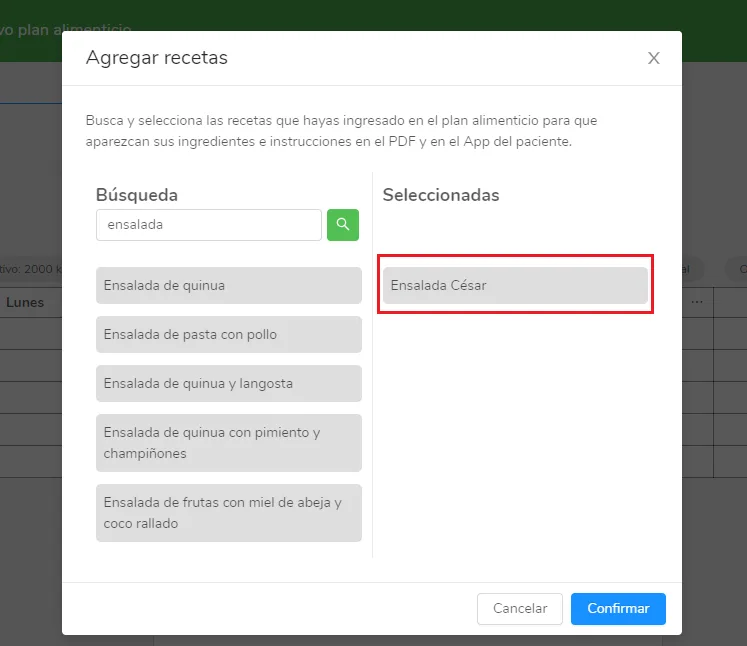
Repeat this with each recipe in the plan and click Confirm.
The patient will see in their app and PDF the instructions and ingredients of the recipes in the Selected column. For a recipe to show up in the search, you must have created it first in your recipes section.
Can’t find what you’re looking for?
Our team replies within 1 business day, Monday to Friday 9:30 AM – 6:00 PM (GMT-5).