
How does the grocery list work?
The grocery list adds up what your patient needs to buy from their meal plan, per week or for the whole plan. Edit it, group items and show it in their app and the PDF.
Updated October 27, 2026
The Groceries list builds itself from the meal plan: it adds up every food of the week, recipe ingredients included, so your patient knows how much to buy. They see it in their app, where they can tick off what they’ve bought, and you can also include it in the plan’s PDF.
It’s available for strict meal plans. Flexible, text and exchange plans don’t have a grocery list.
Where to find it
- In the plan’s last step, Summary, go to What the patient will see.
- In the Grocery list row, turn on the App column, the PDF column or both. The list is generated and opens.
- To open it again, click View and edit list.
At the top you choose how it’s built:
- Weekly: the amounts for one week of the plan.
- Total: the amounts for the whole plan. Only shown for plans longer than a week.
Switching between them generates the list again, and any changes you made to it are lost.
How the amounts are calculated
- Each food is added up across every day it appears. If your patient eats 150 g of chicken breast on four days, the list says 600 grams.
- If the same food comes from different food databases (for example “Olive oil” in one recipe and “olive oil, raw” in another), it’s joined into one line with the total. Those lines carry the Was grouped icon.
- If it’s in different units, such as “1 clove of garlic” and “65 g of garlic”, it’s converted to grams when Almendra knows its weight. Otherwise each unit keeps its own line.
- Amounts are rounded up in multiples of 0.5.
Show how each amount adds up
With the Show how each amount adds up switch, under each repeated food you see where the total comes from, for example 4 × 150 grams. It shows in this window, in the PDF and in your patient’s app.
It starts off. When you turn it on or off, the list also updates in the app, and Almendra remembers your choice for the lists you create next.
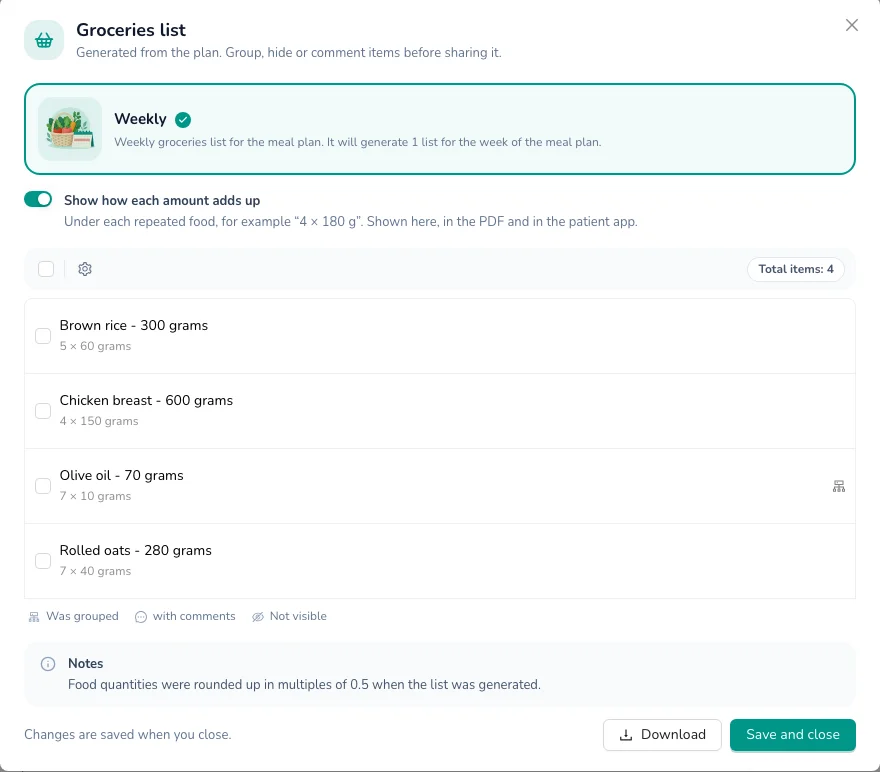
If you change a food’s amount or unit by hand, that line stops showing the breakdown, since it no longer matches the total.
Edit, group and hide
- Edit a food: hover over the line and click the pencil. You can change the name, amount and unit, and write Notes for your patient (for example, where to buy it).
- Split a grouped line: when you edit it you see Ítem composed of with the foods it’s made of. Ungroup puts them back on separate lines.
- Group or hide several: tick the foods’ checkboxes and use Group or Hide. Hidden ones are marked Not visible and your patient doesn’t see them.
- Start over: under the gear icon, Reset groceries list generates it again from the plan. Use it too if you changed the plan after creating the list.
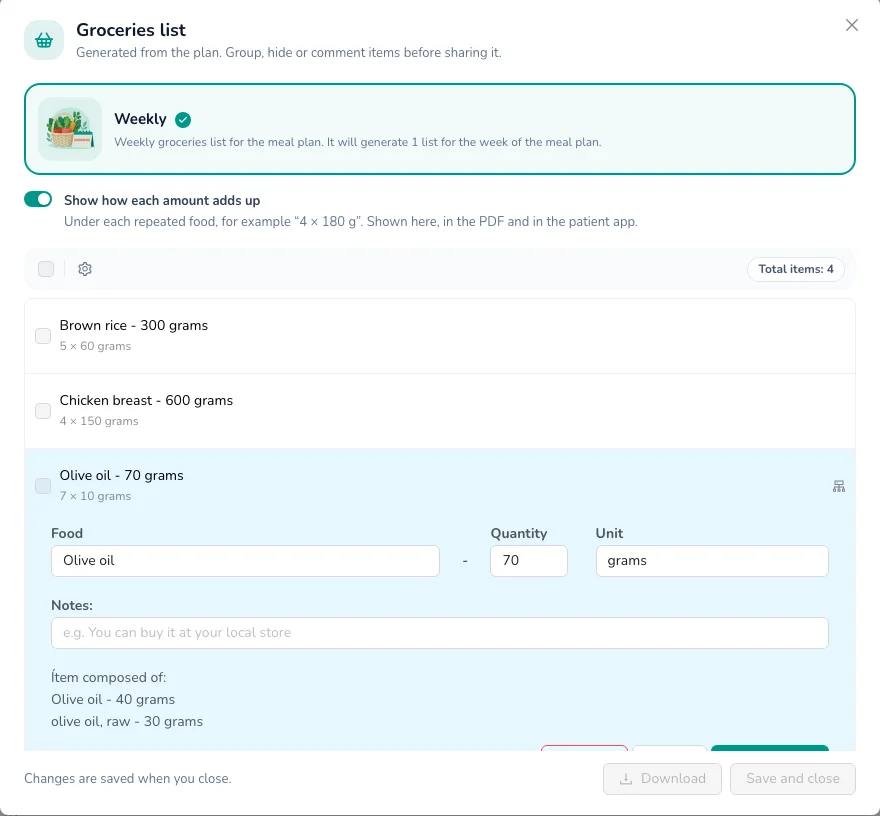
When you’re done, click Save and close. Download gets the list on its own as a PDF.
Can’t find what you’re looking for?
Our team replies within 1 business day, Monday to Friday 9:30 AM – 6:00 PM (GMT-5).